
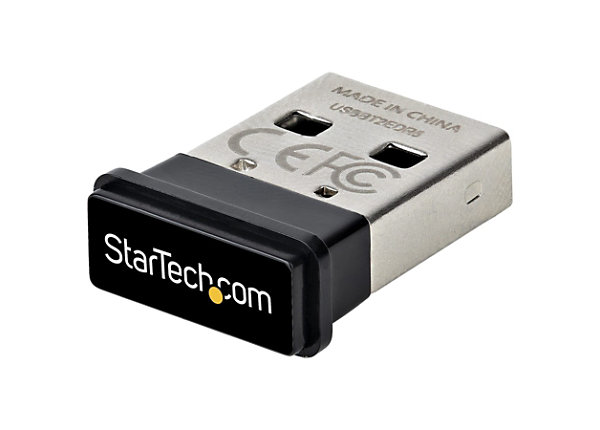

Why add Bluetooth to your PC
If your desktop tower or older laptop doesn’t have Bluetooth built-in, you aren’t locked out of the wireless ecosystem. A small USB adapter plugs into an available port and instantly gives your machine the ability to talk to wireless peripherals. This is the most practical solution for the "PC Reef"—the community of builders and gamers who prioritize raw performance and expandability over the convenience of all-in-one wireless connectivity. It is also the key to easily upgrade your 2026 workflow by clearing desk clutter and reducing cable management headaches.
For office workers, the benefit is immediate clutter reduction. You can ditch the tangled wires of a wired mouse or keyboard and rely on stable, low-power connections. For gamers, the stakes are slightly higher. Latency matters. While Bluetooth isn’t always the absolute lowest-latency option compared to dedicated 2.4GHz dongles for competitive shooters, modern adapters like the ASUS USB-BT500 or the TP-Link UB500 offer reliable connections for most games and definitely for casual play.
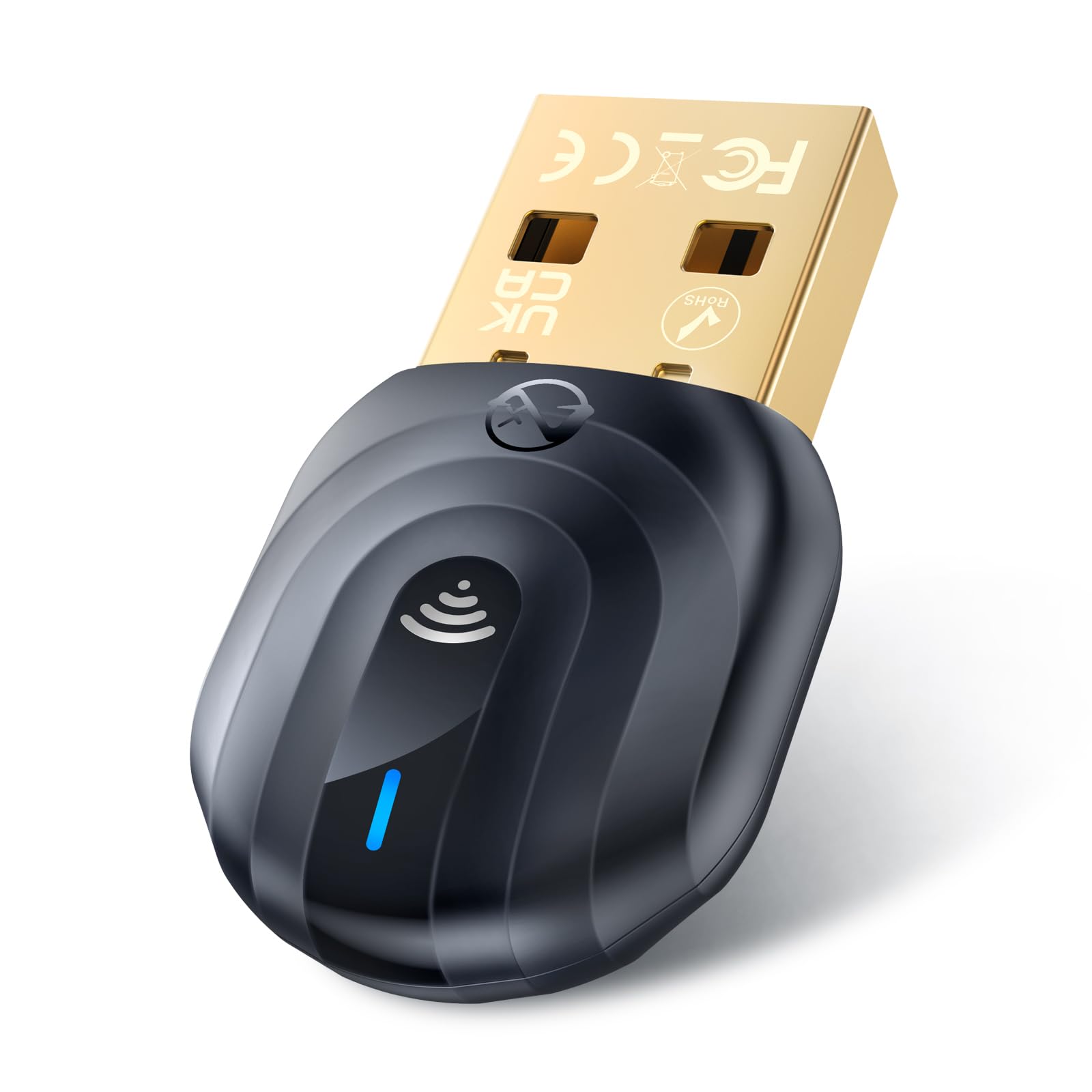
The hardware itself is simple. You plug the dongle in, Windows usually handles the driver installation automatically, and you’re ready to pair. If you need to connect more than just a mouse and keyboard, look for adapters that support Bluetooth 5.0 or higher, like the ZEXMTE Bluetooth 6.0 Adapter, which handles both standard audio devices and low-energy sensors more efficiently than older 4.0 versions. This small investment unlocks a wireless workflow without needing to open your case or install a PCIe card.
Best overall Bluetooth adapter for PC
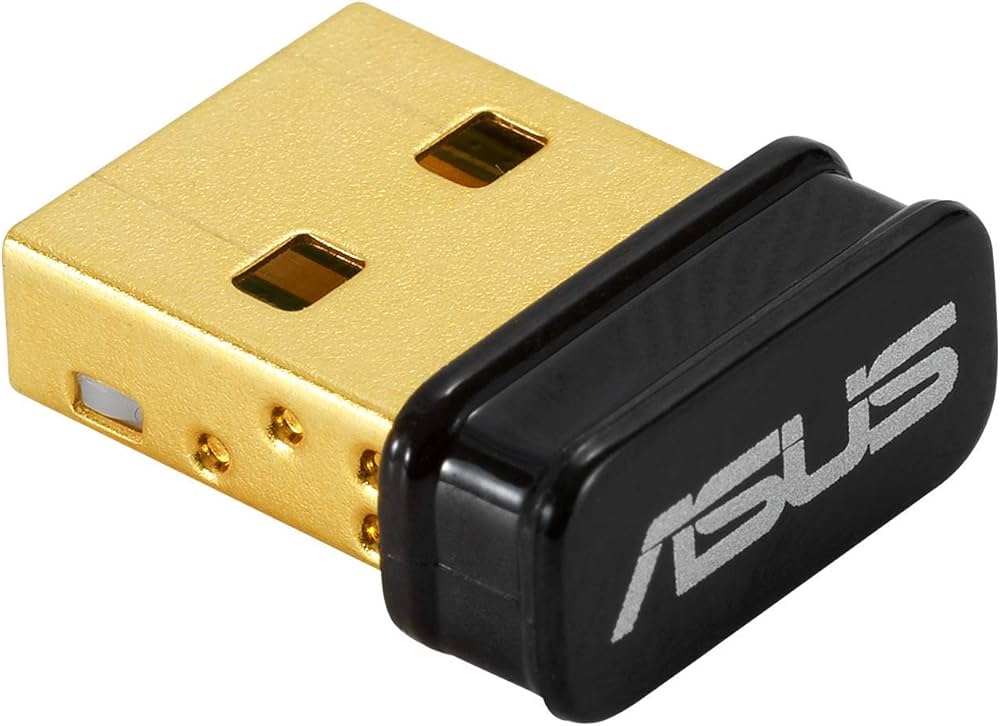
The ASUS USB-BT500 stands out as the best overall Bluetooth adapter for PC, balancing reliable connectivity with broad peripheral compatibility. It leverages Bluetooth 5.0 technology to deliver stable connections for gaming mice, keyboards, and headsets, making it a solid choice for both gaming rigs and home office setups.
This adapter supports Enhanced Data Rate (EDR), which helps maintain low latency during gameplay and ensures clear audio transmission. Its compact design allows it to sit flush with the USB port, preventing accidental dislodging while keeping your desk tidy. For users looking to add Bluetooth capabilities to a desktop without opening the case, this plug-and-play solution offers a straightforward upgrade path.
While other options exist, the ASUS model consistently performs well across Windows 10 and 11 environments. It handles multiple simultaneous connections effectively, which is essential for users who juggle several wireless devices. The driver installation is generally seamless, reducing the technical friction often associated with adding new hardware to a PC.


As an Amazon Associate, we may earn from qualifying purchases.
| Product | Bluetooth Version | Key Feature | Best For |
|---|---|---|---|
| ASUS USB-BT500 | 5.0 | EDR Support | General Use |
| TP-Link UB500 | 5.0 | Long Range | Large Rooms |
| ZEXMTE BT5.0 | 5.0 | Dual Antenna | Stability |
Best budget Bluetooth adapter for PC
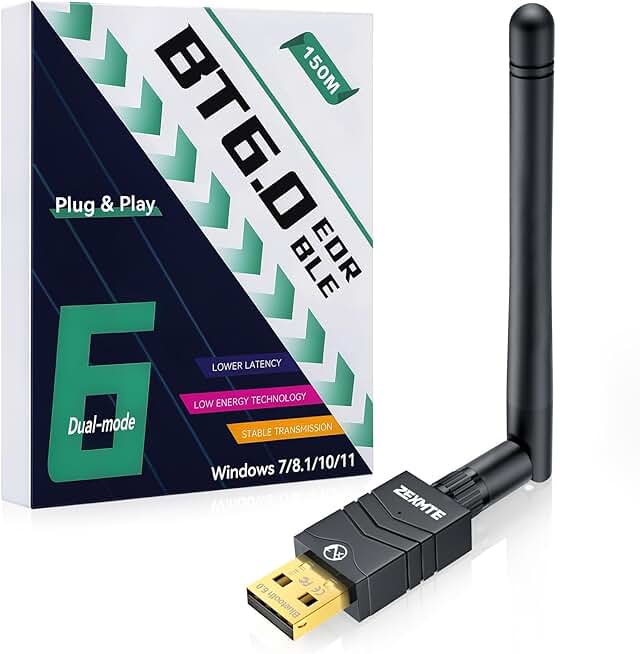
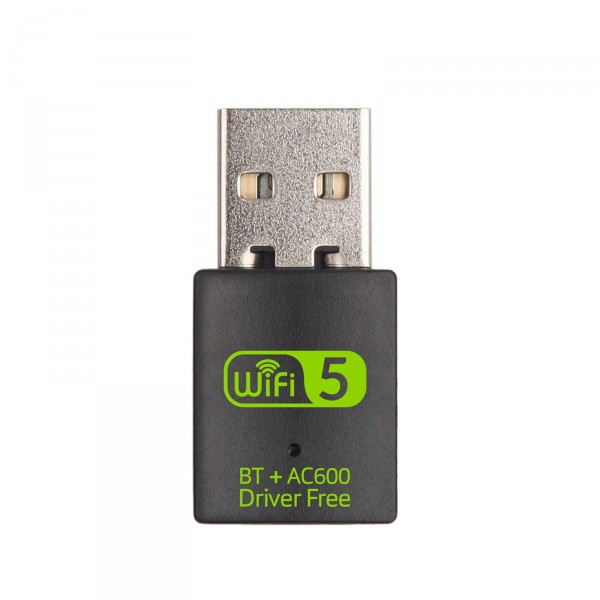
When you need to add Bluetooth to a desktop without spending a fortune, the ZEXMTE Bluetooth 5.0 Adapter is the go-to pick. It plugs directly into a USB port and handles the basics—connecting wireless mice, keyboards, and headphones—without the bloat of premium features. For most office tasks and casual gaming, this is all you actually need.
The ZEXMTE dongle supports both BR/EDR and BLE modes, which means it works with a wide range of peripherals. While it doesn't offer the absolute lowest latency found in high-end gaming adapters, it is stable enough for standard wireless mice and controllers. If you are building a simple PC reef setup or just want to declutter your desk by removing wired peripherals, this adapter does the job reliably.
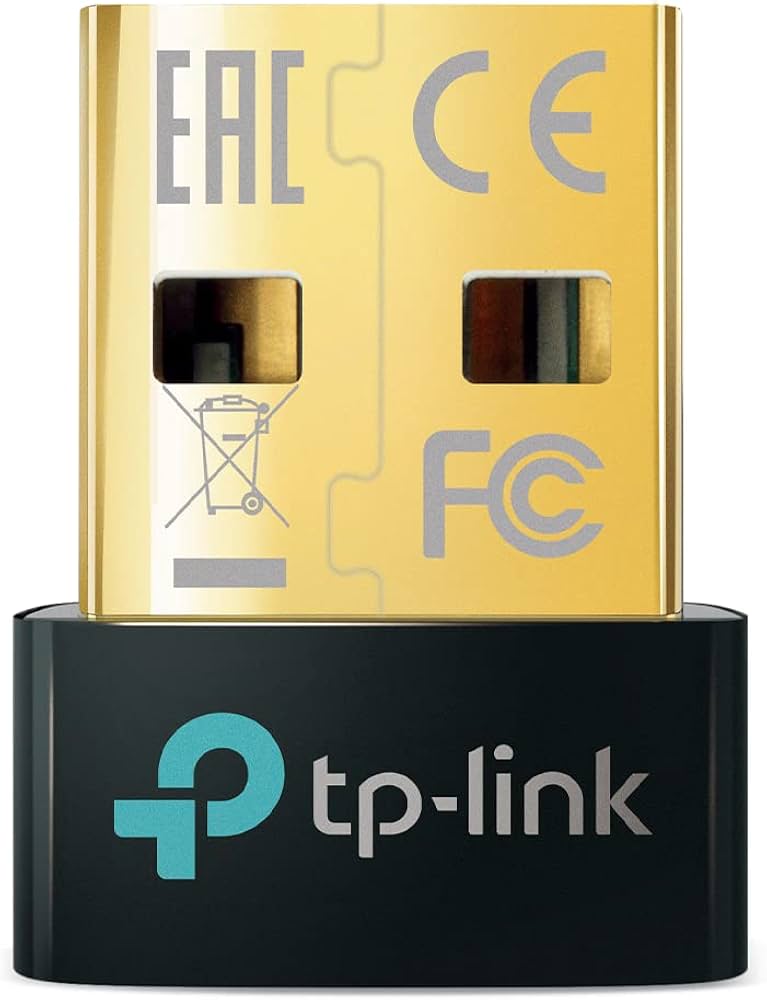
We also recommend the TP-Link UB500 as a solid alternative. It is slightly more compact and has a strong reputation for driver stability on Windows 10 and 11. Both options are plug-and-play for most users, requiring no extra software installation beyond what Windows provides automatically.


As an Amazon Associate, we may earn from qualifying purchases.
Best long-range Bluetooth adapter for PC
If your gaming rig or office setup is tucked away in a corner, standard Bluetooth dongles often struggle to maintain a stable connection. Standard adapters typically operate at Class 2, limiting their effective range to about 30 feet with clear line of sight. For larger rooms or setups where the PC is under a desk, upgrading to a Class 1 adapter is the most reliable fix. These devices broadcast at higher power, extending range up to 100 feet and punching through obstacles like desks and walls that usually cause latency spikes or audio dropouts.
When selecting a long-range adapter, prioritize models that explicitly support Class 1 standards. This ensures your wireless mouse, keyboard, and headphones stay connected even when you move around the room. It is particularly beneficial for PC Reef enthusiasts who use multiple peripherals, as the increased signal strength reduces interference and maintains low latency for competitive gaming.
We recommend checking the specific driver compatibility of these adapters before purchase, as some high-power models may require manual driver installation on Windows. Look for reputable brands like ASUS or TP-Link, which often include better antennas and more robust chipsets designed for sustained range performance.

As an Amazon Associate, we may earn from qualifying purchases.
How to install a Bluetooth adapter
Adding Bluetooth to a desktop or older laptop is usually a straightforward hardware swap. Whether you are using a budget pick like the TP-Link UB500 or a high-performance dongle for gaming peripherals, the installation process follows the same logical flow. The goal is to get Windows to recognize the new hardware and load the correct drivers so you can connect low-latency controllers or headphones.
Insert the Bluetooth dongle into an available USB port on your PC. Prefer a USB 2.0 or 3.0 port directly on the motherboard (the back of the case) rather than a front-panel port or a hub. This ensures stable power delivery and reduces interference, which is critical for maintaining connection stability with gaming mice or wireless headsets.
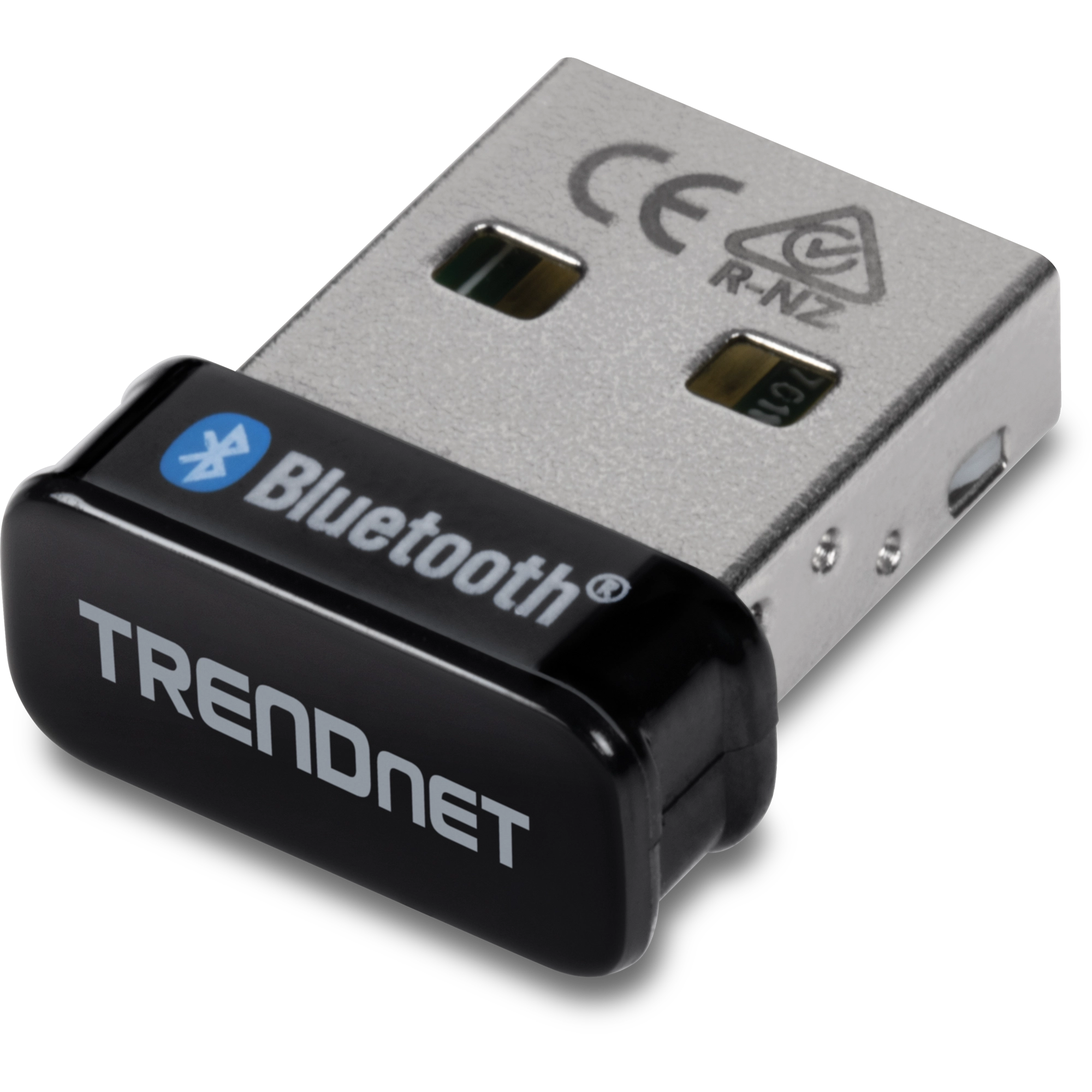
Windows 10 and 11 typically include generic Bluetooth drivers. After plugging in the adapter, wait 30-60 seconds. You should see a notification in the system tray indicating that the device is ready to use. If you don't see a notification, check the "Bluetooth & devices" section in Settings to see if the adapter appears in the list of available hardware.
If Windows doesn't recognize the adapter automatically, or if you need specific features like Bluetooth 5.3 support for better range, you must install the official drivers. Visit the support page for your specific model (e.g., ASUS, TP-Link, or ZEXMTE) and download the latest driver package. Run the installer and restart your computer if prompted.
Once the drivers are installed, go to Settings > Bluetooth & devices and toggle Bluetooth to "On." Click "Add device" to search for nearby peripherals. This is where you pair your headphones, controllers, or keyboards. For gaming rigs, ensure your adapter is set as the default audio output device in the sound settings to minimize latency.

As an Amazon Associate, we may earn from qualifying purchases.
Common bluetooth adapter: what to check next
Adding Bluetooth to a desktop or older laptop is straightforward, but getting it to work reliably with gaming peripherals or office audio requires a few specific steps. Here are the answers to the most frequent questions about USB Bluetooth dongles.
What to do if my PC has no Bluetooth?
If your motherboard lacks built-in wireless capabilities, you can add Bluetooth by plugging a USB adapter into an available USB port. Most modern adapters, like the TP-Link UB500 or ASUS USB-BT500, are plug-and-play on Windows 10 and 11. However, if Windows doesn’t automatically recognize the device, you’ll need to download the specific drivers from the manufacturer’s website to ensure full functionality.
How do I enable Bluetooth on my PC?
Once the adapter is plugged in, you need to activate it in Windows. Go to Start > Settings > Bluetooth & devices. Toggle the Bluetooth switch to On. If your adapter isn’t showing up here, check the Device Manager to ensure the driver installed correctly. For gaming rigs, ensure that "Game Mode" or low-latency features are enabled in the adapter’s companion software if available, such as with the ZEXMTE BA05.
Will a Bluetooth adapter work with my wireless headset?
Yes, but compatibility depends on the Bluetooth version. Most modern headsets, including Sony WH-1000XM5 or Bose QuietComfort models, work best with Bluetooth 5.0 or higher adapters. Older USB 2.0 adapters may struggle with audio latency, causing lip-sync issues in videos or lag in competitive gaming. For office use, standard Bluetooth 4.2 is usually sufficient, but for gaming, look for adapters that support low-latency codecs like aptX LL.

As an Amazon Associate, we may earn from qualifying purchases.
No comments yet. Be the first to share your thoughts!