

Bluetooth 6.0 for gamers
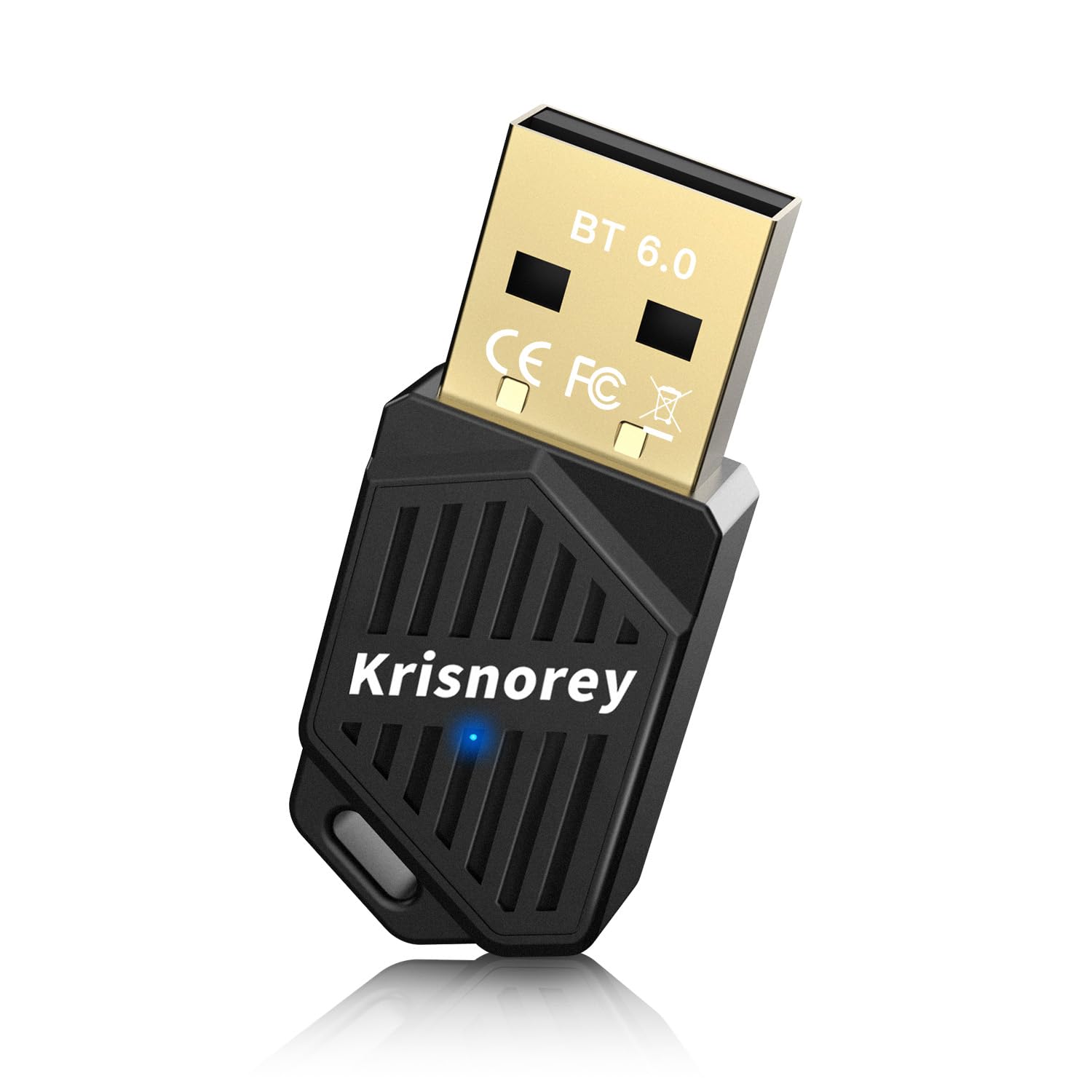
Bluetooth 6.0 is finally hitting the market, and it actually fixes the lag issues that made the 5.x series frustrating for fast-paced games. The update cuts down the delay between your controller and the screen. If you play competitive shooters or rhythm games, this is the first version of Bluetooth that might actually feel as fast as a wired connection.
While Bluetooth 5.3 is still incredibly common, and perfectly serviceable for many, Bluetooth 6.0 introduces features specifically designed to address the demands of real-time applications like gaming. It's not a complete overhaul, but rather a refinement of existing technologies. The adoption rate as of late 2024 is still relatively low, but we anticipate a significant increase in 2025 and 2026 as more devices and adapters become available. Right now, it’s a matter of waiting for the ecosystem to catch up.
You might be wondering why you'd need an adapter if you have a relatively new motherboard. Many modern motherboards do include Bluetooth, but they often stick with older standards. A dedicated adapter allows you to immediately take advantage of Bluetooth 6.0’s benefits without needing to replace your entire motherboard. Plus, adapters can sometimes offer better antenna designs and dedicated drivers, leading to a more stable and reliable connection.
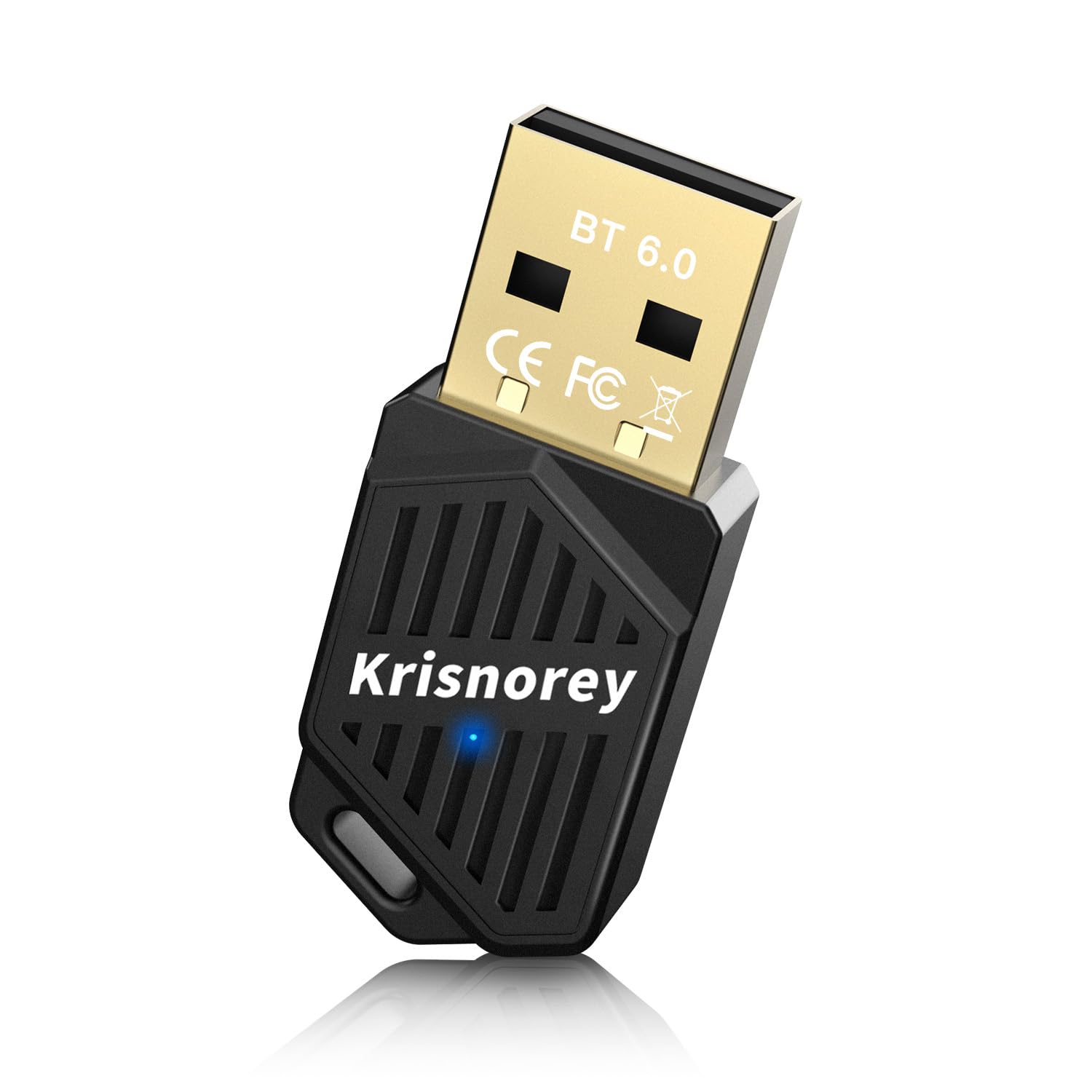
The lag problem
Latency, in the context of gaming, is the delay between your input (pressing a button on a controller, for example) and the corresponding action happening on screen. It’s often measured in milliseconds (ms), and even small amounts of latency can be incredibly noticeable. High latency leads to input lag, making games feel sluggish and unresponsive. Audio delay and desync issues are also common symptoms, where the sound doesn’t quite match the visuals.
Bluetooth isn't the only thing causing lag—your monitor and CPU play a part too. But while a 144Hz screen helps with visuals, a slow Bluetooth connection creates a separate bottleneck. Bluetooth 6.0 uses 'Isochronous Channels' to give your controller data its own lane, so it doesn't get stuck behind other background signals.
So, how much latency is noticeable? Most gamers can reliably detect latency above 50ms. Competitive players often strive for latency below 20ms. While Bluetooth 5.x could often reach around 30-50ms, Bluetooth 6.0 aims to bring that down to the 10-20ms range, making it a viable option for serious gamers. Reducing latency even by a few milliseconds can make a tangible difference in reaction time and overall gameplay.
Why a dedicated dongle beats onboard chips
Using a dedicated Bluetooth adapter offers several advantages over relying on the Bluetooth built into your motherboard. Motherboard Bluetooth is often a secondary feature, and manufacturers may prioritize cost savings over performance. Adapters, on the other hand, are specifically designed for wireless connectivity and can incorporate the latest standards immediately. They also allow you to upgrade without replacing your entire motherboard.
Adapters frequently feature better antennas than those integrated into motherboards, leading to a stronger and more stable signal. Dedicated drivers, often provided by the adapter manufacturer, can also optimize performance. Furthermore, motherboard Bluetooth can sometimes conflict with other onboard components, while a USB adapter operates independently. Bluetooth class is also important – Class 1 offers the longest range (up to 100 meters), Class 2 is around 10 meters, and Class 3 is only a few meters.
USB dongle size can be a consideration, especially if you’re using a laptop with limited USB ports. Some adapters are quite bulky. Interference is another potential issue. Placing the adapter away from other electronic devices and using a USB extension cable can help minimize signal disruption. It's a small point, but something to keep in mind.
Top adapters to watch for in 2026
The Bluetooth 6.0 adapter market is still developing, but several options look promising for 2026. It’s important to remember that some of these are anticipated releases, and specifications are subject to change. Here’s a look at some of the key contenders:
TP-Link UB700 (Projected): TP-Link is a reliable name in networking, and their UB700 is expected to be one of the first widely available Bluetooth 6.0 adapters. It's anticipated to offer a range of up to 50 meters and support for LE Audio. Price is currently unknown, but TP-Link adapters are generally affordable. Its strength will be its price-to-performance ratio.
ASUS USB-BT600 (Confirmed): ASUS has confirmed the USB-BT600, featuring Bluetooth 6.0 and support for a wide range of audio codecs, including aptX Lossless. It’s expected to retail around $50. The ASUS adapter will likely appeal to audiophiles who demand high-quality wireless audio.
Avantree DG80 (Projected): Avantree specializes in wireless audio solutions, and their DG80 is designed specifically for gaming. It’s expected to feature ultra-low latency mode and support for multiple audio codecs. Price is estimated to be around $60. The DG80 will focus on minimizing lag for competitive gaming.
Plugable USB 6.0 Bluetooth Adapter (Projected): Plugable is known for its reliable and well-supported adapters. Their upcoming Bluetooth 6.0 adapter is expected to offer excellent compatibility and a stable connection. Price is currently unknown. The Plugable adapter is expected to be a good all-around option.
Sabrent BT-600 (Projected): Sabrent is a popular brand for USB accessories. Their BT-600 is expected to be a compact and affordable Bluetooth 6.0 adapter with decent range and performance. Pricing is estimated around $35. Sabrent will likely appeal to users looking for a budget-friendly upgrade.
Corsair Voyager aX (Projected): Corsair is a well-known gaming hardware manufacturer. Their Voyager aX adapter will likely focus on low latency and compatibility with Corsair’s wireless gaming headsets. The price is currently unknown but expect it to be on the higher end. Corsair will likely be geared towards existing Corsair ecosystem users.
Bluetooth 6.0 Adapters for PC Gaming 2026: A Comparative Overview
| Adapter Name | Best For | Trade-off | Consider When |
|---|---|---|---|
| Avantree DG60 | Competitive Gaming | Potentially higher cost | Lowest latency is paramount for fast-paced titles. |
| TP-Link UB600 | General Gaming & Audio | Range may be limited in some environments | A balance of features and affordability is needed. |
| Plugable USB Bluetooth Adapter | Broad Compatibility | May require driver updates for optimal performance | Using multiple operating systems is a requirement. |
| ASUS USB-BT600 | ASUS Ecosystem Integration | Feature set is similar to other adapters | Already invested in ASUS peripherals and software. |
| Creative Sound Blaster C3 | Audio Focused Gaming | Larger form factor than some adapters | High-fidelity audio is a priority alongside low latency. |
| Ugreen Bluetooth 6.0 Adapter | Simple Setup & Reliability | May lack advanced codec options | Ease of use and stable connection are key. |
Qualitative comparison based on the article research brief. Confirm current product details in the official docs before making implementation choices.
Picking the right codec
Bluetooth audio codecs determine the quality and latency of wireless audio transmission. SBC is the standard codec, supported by all Bluetooth devices, but it isn't known for exceptional quality. AAC is commonly used by Apple devices and offers better quality than SBC. aptX provides higher quality and lower latency, but requires both the adapter and headset to support it.
aptX Adaptive dynamically adjusts the bitrate based on the connection quality, offering a good balance between quality and latency. LDAC, developed by Sony, offers the highest audio quality but generally has higher latency. Bluetooth 6.0 supports all of these codecs, but the specific codecs supported by an adapter will vary. It's important to ensure compatibility between your adapter, headset, and PC to get the best possible audio experience.
Predicting which codecs will be dominant in 2026 is difficult. aptX Adaptive and LDAC are currently popular choices for audiophiles, while SBC and AAC remain widely used. The emergence of LE Audio, a new Bluetooth audio standard, could also shake things up. LE Audio offers improved efficiency and support for multi-stream audio. Understanding codec support is critical for maximizing your wireless audio quality.
Setup and fixes
Installing a Bluetooth adapter is typically a straightforward process. Simply plug the adapter into an available USB port. Windows should automatically detect the adapter and install the necessary drivers. If not, you may need to download the drivers from the manufacturer’s website. Once the drivers are installed, you can pair your Bluetooth devices through the Windows Settings app.
To pair a device, go to Settings > Bluetooth & devices, and ensure Bluetooth is turned on. Your adapter should appear in the list of available devices. Select the adapter and follow the on-screen instructions to pair your controller or headset. Common issues include connection drops, audio distortion, and devices not being recognized. Restarting your PC and the Bluetooth device can often resolve these issues.
If the signal feels choppy, move the dongle away from your Wi-Fi router or other USB 3.0 devices. I've found that using a short USB extension cable to get the adapter out from behind a metal PC case usually fixes most dropouts. Keep your drivers updated, but if a specific controller won't sync, the manufacturer's site is usually more helpful than the generic Windows troubleshooter.
No comments yet. Be the first to share your thoughts!