


PCIe vs USB WiFi adapters
Choosing between a PCIe card and a USB adapter for your desktop comes down to two things: how much space you have inside your case and how much speed you actually need. PCIe cards plug directly into the motherboard, offering a stable, high-bandwidth connection that USB dongles simply can't match for heavy data loads.
USB WiFi adapters are the easy fix for laptops or small form-factor PCs where internal slots are scarce. They plug into an external port, but they often run hotter and may struggle to maintain peak speeds if the USB port shares bandwidth with other devices. For most desktop builders, a PCIe card is the better long-term investment because it leaves USB ports free for drives and peripherals.
The table below compares the two form factors side-by-side to help you decide which fits your build.
| Feature | PCIe Card | USB Adapter |
|---|---|---|
| Installation | Requires opening case and slot access | Plug-and-play external port |
| Max Speed | Up to WiFi 7 (40 Gbps theoretical) | Usually limited to WiFi 6E (up to 2.4 Gbps) |
| Antenna Flexibility | External antennas mount outside case | Fixed or short flexible antennas |
| Port Usage | Uses internal motherboard slot | Uses external USB-A or USB-C port |
Best overall WiFi card for PC
If you want the fastest, most stable connection your desktop can handle, the MSI Herald BE is the top pick. It is a PCIe Wi-Fi adapter that supports the latest Wi-Fi 7 standard, offering speeds that leave older cards behind. The card includes an optional Bluetooth 5.4 module, so you get modern wireless connectivity for peripherals without needing a separate dongle.
Wi-Fi 7 brings significant improvements in speed and latency, especially in crowded environments. The MSI Herald BE leverages 320 MHz channels and multi-link operation to maintain a steady connection even when your network is busy. This makes it ideal for 4K streaming, large file transfers, and competitive gaming where every millisecond counts.
Installing the card is straightforward for most desktop users. It slots into an available PCIe x1 or x16 slot on your motherboard and connects to your router via the included antennas. The setup process is simple, and the drivers are regularly updated to support new network standards.
For those ready to upgrade their home network, this card represents the current peak of desktop wireless performance. It balances raw speed with practical features, making it the best overall choice for power users.


As an Amazon Associate, we may earn from qualifying purchases.
Best budget WiFi card for PC
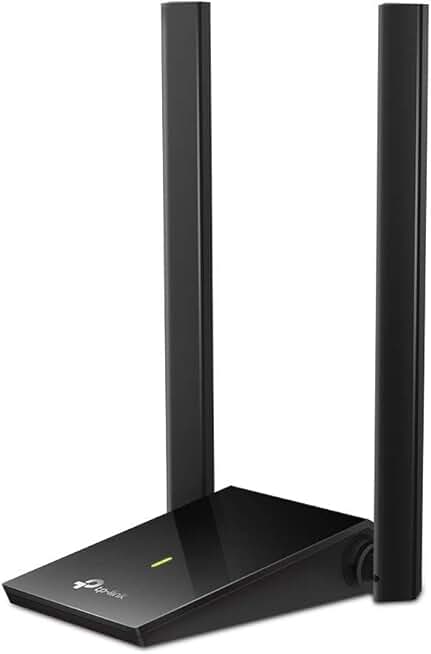
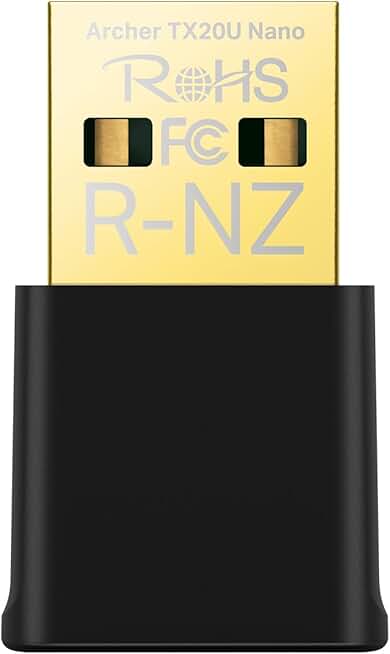
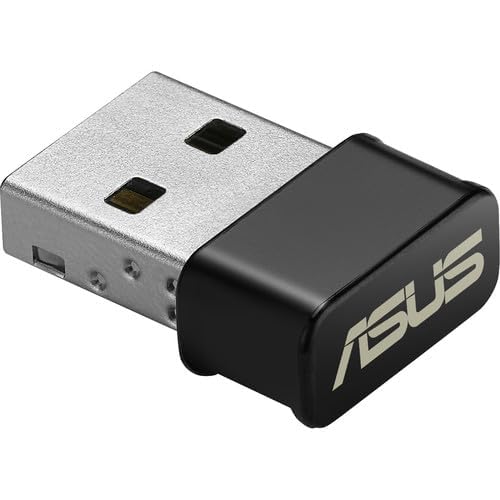
You don’t need to spend over $50 to get reliable wireless speeds for everyday tasks. If you are streaming 4K video, video calling, or browsing the web on a desktop, a budget WiFi card is the most practical upgrade. These adapters bridge the gap between your old PC and modern routers without breaking the bank.
The market splits into two main categories: PCIe cards that slot inside the tower, and USB adapters that plug into an external port. For most budget builds, a USB WiFi adapter is the simpler choice. It requires no case opening and works instantly. Look for Wi-Fi 6 (802.11ax) support if your router is new; older Wi-Fi 5 (AC) cards are fine if you are pairing with an older router.
When shopping, prioritize brands like TP-Link and ASUS. They offer consistent driver support and solid build quality at low price points. Avoid no-name generics that may lack security updates or compatible drivers for Windows 11. The following options represent the best value in their respective form factors.
As an Amazon Associate, we may earn from qualifying purchases.
Best Bluetooth adapter for PC
Most modern WiFi cards include Bluetooth 5.0 or higher, which handles standard connections like mice, keyboards, and game controllers without issue. However, Bluetooth is not just a companion feature; it is the primary link for low-latency audio and high-bandwidth peripherals. If you plan to use wireless headphones or a VR headset, the Bluetooth version on your WiFi card matters more than the WiFi speed itself.
Standard Bluetooth audio often suffers from compression artifacts and slight delays, which can throw off lip-sync in videos or cause lag in fast-paced games. Newer standards like Bluetooth 5.2 and 5.3 introduce LE Audio, which offers better sound quality and lower power consumption. If your current WiFi card only supports Bluetooth 4.2 or 5.0, you may notice these limitations during heavy use.
If your built-in Bluetooth isn't cutting it, a dedicated USB Bluetooth adapter is a cheap and effective fix. These small dongles plug into any available USB port and provide a fresh, dedicated radio for your peripherals. This separates your audio and controller traffic from your WiFi card, reducing interference and improving stability. Look for adapters that support Bluetooth 5.3 for the best compatibility with modern devices.
For those who need maximum reliability, pairing a dedicated Bluetooth 5.3 USB adapter with your WiFi card ensures you get the latest features without upgrading your entire system. This setup is particularly useful for desktop PCs that lack modern wireless standards. It is a simple upgrade that solves connectivity headaches for audio and input devices alike.
Check your motherboard slots first
Before you buy a PCIe WiFi card, you need to confirm your motherboard has an available expansion slot. Most modern desktops include at least one PCIe x1 or x4 slot, which is all a WiFi card needs to function. However, space can be tight, especially in smaller cases or systems with multiple graphics cards.
Look for an open slot on your motherboard. It will be a short horizontal connector, typically located near the graphics card. If your case is full or the slots are occupied, a USB WiFi adapter is a simpler alternative that requires no internal installation.
Once you have an open slot, check the card’s physical length. Some high-performance models, like the TP-Link Archer TX50E or the ASUS PCE-AX58BT, are quite long and may block adjacent slots or interfere with larger graphics cards. Measure the available space inside your case to ensure a snug but safe fit.
No comments yet. Be the first to share your thoughts!