

The speed leap for gamers
WiFi 7 is the first wireless standard that actually competes with an Ethernet cable. By 2026, it will be the baseline for anyone playing fast-paced shooters or fighting games where a single lag spike ruins the match. The upgrade isn't just about raw speed; it's about keeping your ping stable when everyone else in your house is streaming 4K video.
The core improvements revolve around three main areas: wider 320MHz channels, higher data rates thanks to 4096-QAM, and a technology called Multi-Link Operation (MLO). These aren’t just incremental changes. They represent a fundamental shift in how WiFi networks operate, allowing for significantly more data to be transmitted and received with less interference. This translates to lower ping times, reduced lag spikes, and a more reliable gaming experience.
For competitive gamers, even a slight reduction in latency can be the difference between winning and losing. WiFi 7’s ability to maintain a stable connection in crowded environments – think apartment complexes or gaming events – is a huge advantage. While WiFi 7 hardware is still becoming more readily available, early indicators suggest it will quickly become the standard for serious PC gamers. The initial cost is higher, but the benefits could be substantial.
How WiFi 7 actually works
Let’s break down the technology behind WiFi 7. First, the move to 320MHz channels effectively doubles the bandwidth compared to WiFi 6E’s 160MHz channels. Think of it like widening a highway – more lanes mean more cars can travel at the same time. This wider channel allows for faster data transfer rates, but it also requires less congested spectrum to operate effectively.
Then there's 4096-QAM, which stands for Quadrature Amplitude Modulation. This is a complex way of saying that WiFi 7 can pack more data into each transmission. Where WiFi 6 used 1024-QAM, WiFi 7 can transmit roughly four times as much data in the same amount of time. It’s a more efficient way of utilizing the available bandwidth.
However, the real star of the show is Multi-Link Operation (MLO). Traditionally, a device connects to a router using a single band – 2.4GHz, 5GHz, or 6GHz. MLO allows a device to simultaneously connect using multiple bands. This isn’t just about adding bandwidth; it’s about creating redundancy and reducing latency. If one band experiences interference, the connection seamlessly switches to another, maintaining a stable link. This aggregation of multiple bands is what makes MLO a potential game-changer for online gaming.
Preamble puncturing is another element—it allows WiFi 7 to avoid interference on specific frequencies within a channel, improving efficiency. The goal is to allow the WiFi 7 signal to continue transmitting even if part of the spectrum is blocked.
PCIe vs. USB adapters
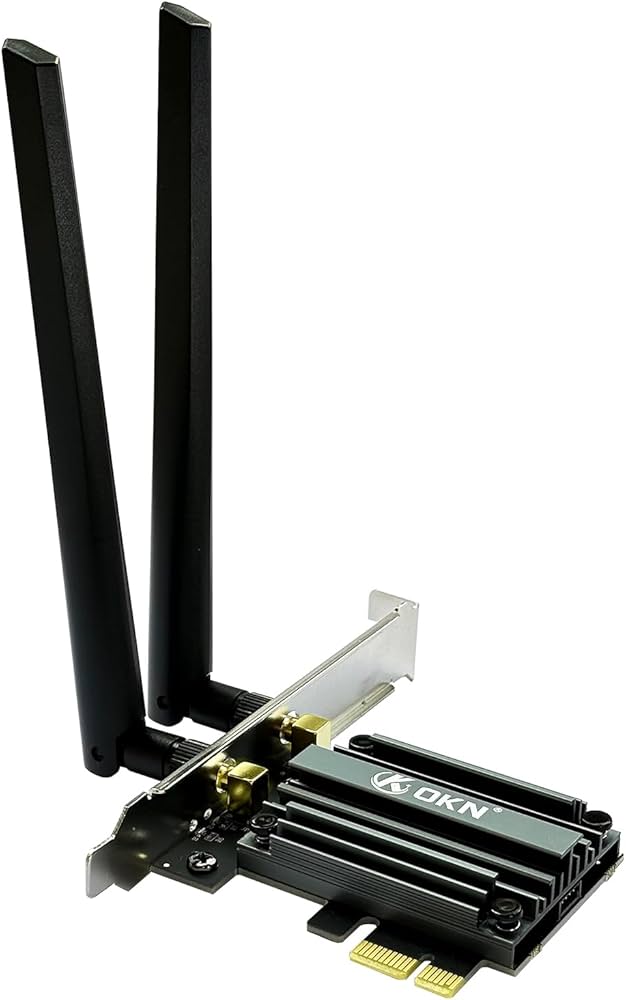
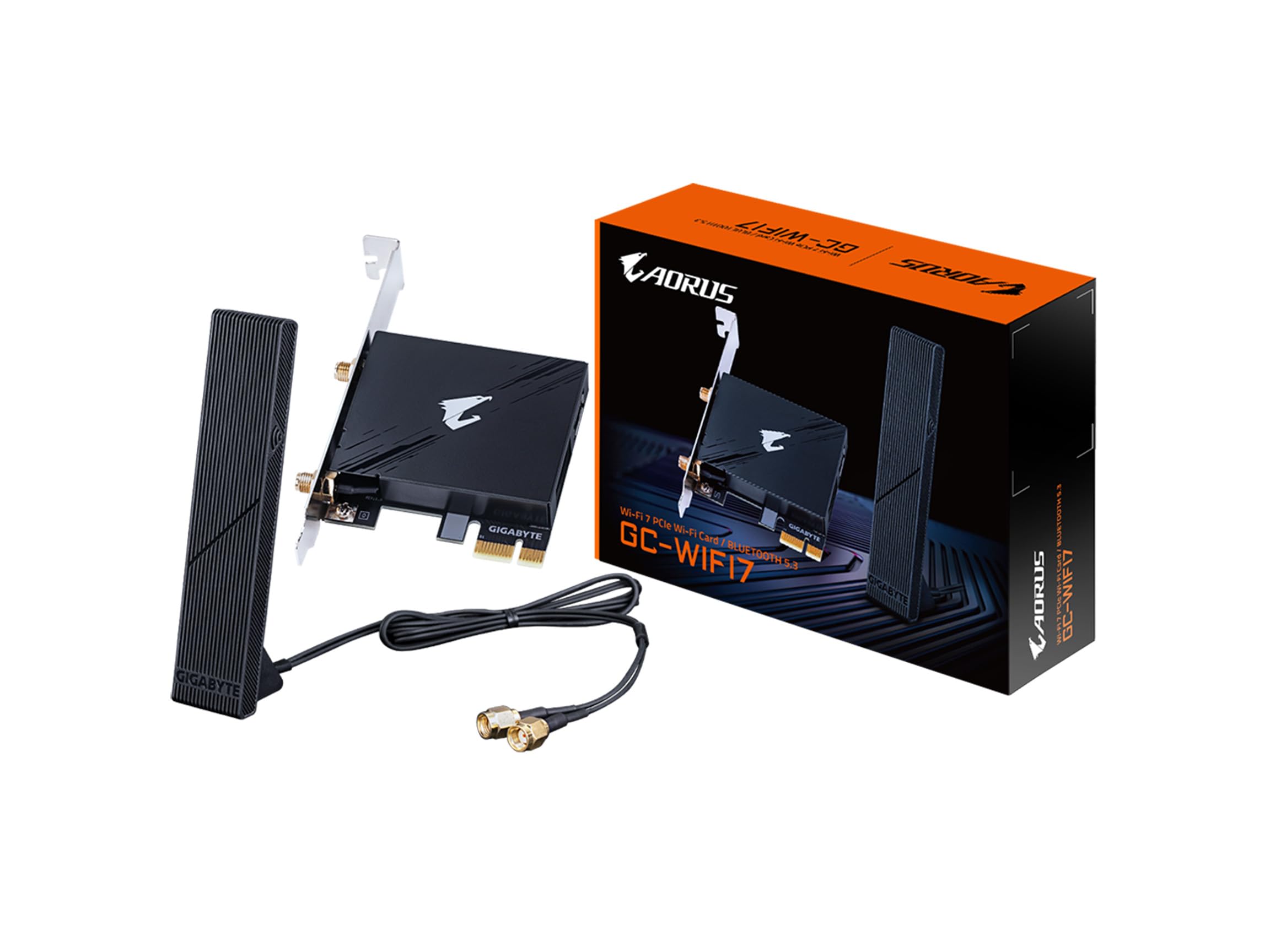
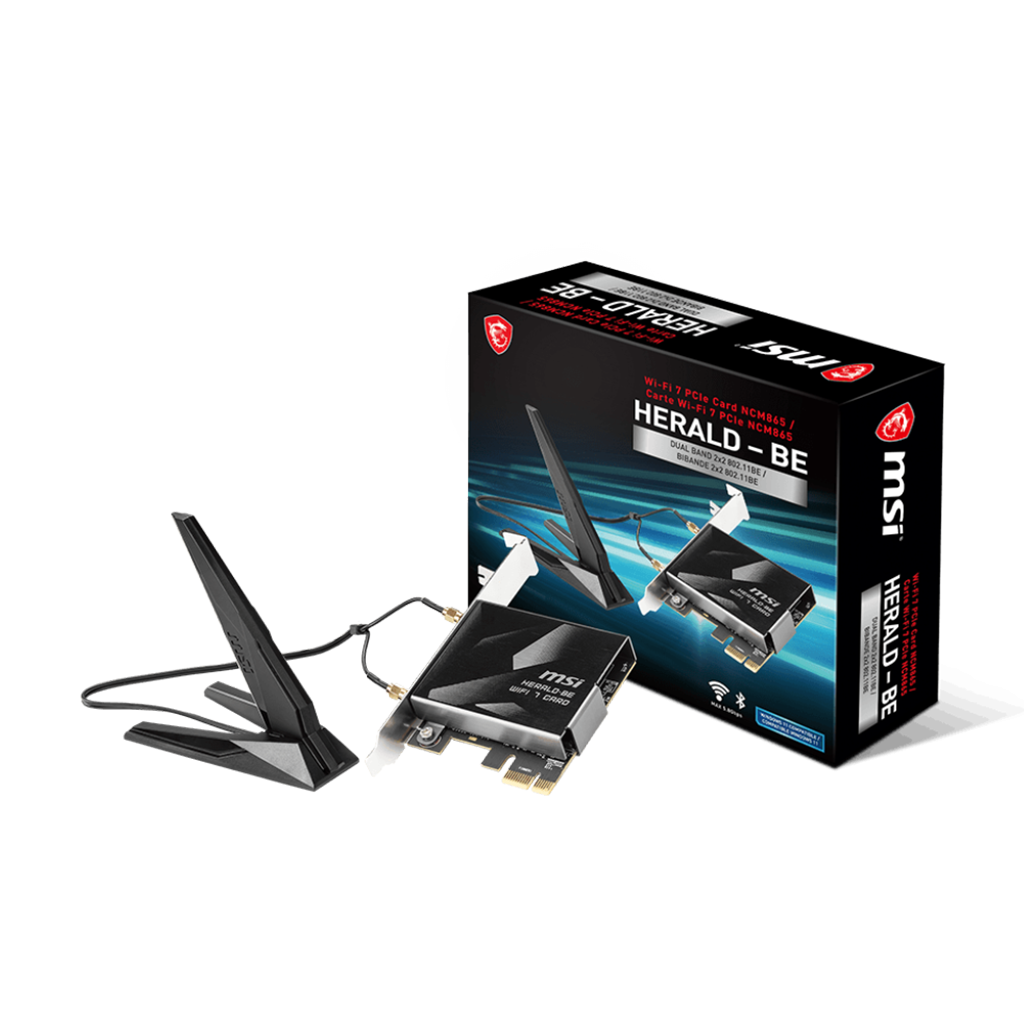
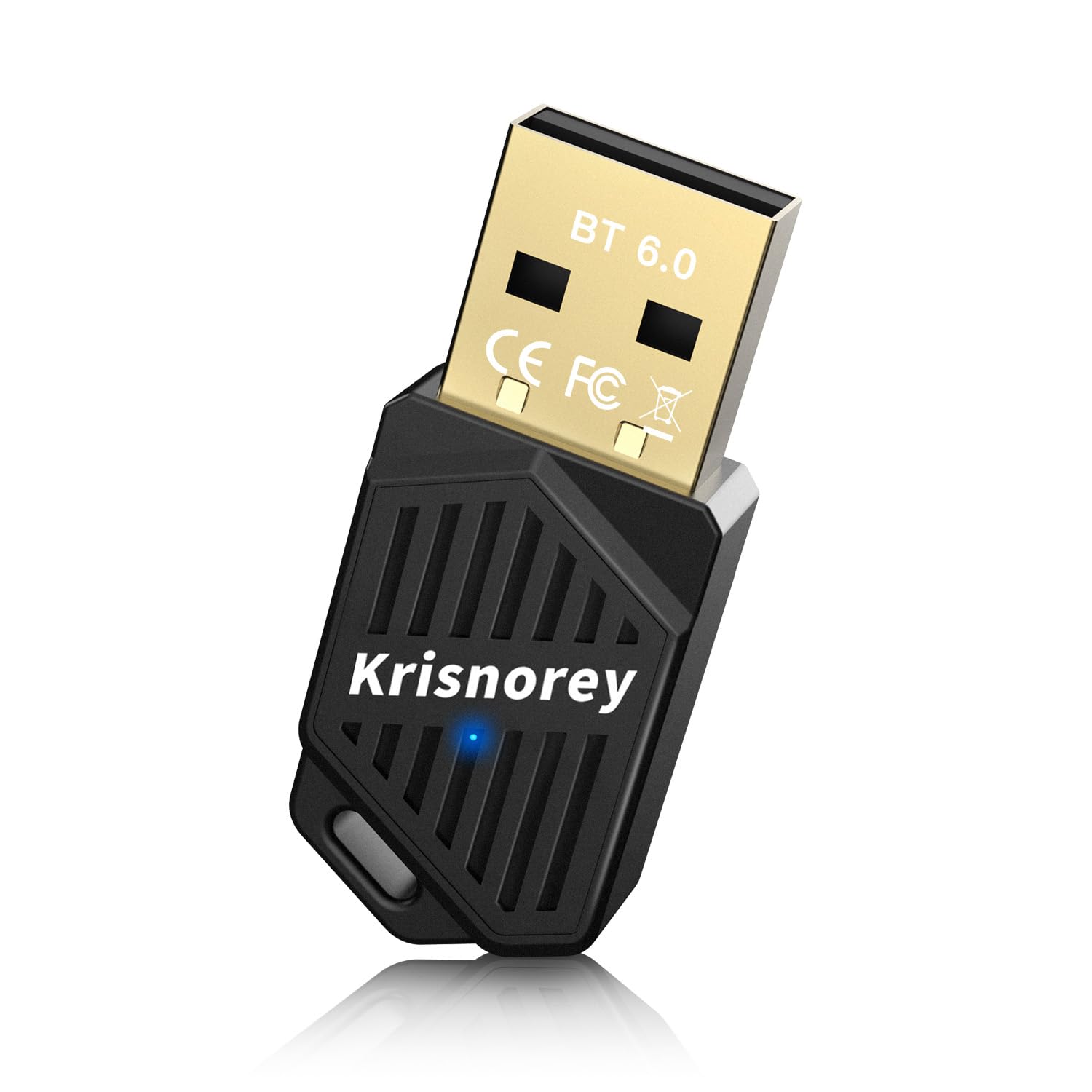
When choosing a WiFi 7 adapter for your gaming PC, you’ll primarily encounter two form factors: PCIe and USB. PCIe cards plug directly into a motherboard’s PCIe slot, offering a dedicated connection to the system. USB adapters, on the other hand, plug into a USB port, providing portability and easier installation.
PCIe cards generally have the potential for higher speeds and lower latency because they bypass the overhead associated with USB communication. They have a direct lane to the processor, minimizing bottlenecks. However, they require an available PCIe slot, which can be a limiting factor in some builds. You also need to physically open your PC case to install one.
USB adapters are easier to swap between machines, but they come with a performance ceiling. A card like the WAVLINK BE6500 uses USB 3.0, which caps out well below what WiFi 7 can actually do. If you want the full 5Gbps+ speeds promised by the new standard, you need a USB 4.0 port or a dedicated PCIe card.
- PCIe cards offer the lowest latency and highest speeds because they connect directly to the motherboard, though they require an open slot and a bit of manual installation.
- USB adapters are portable and plug-and-play, but they are often throttled by older USB 3.0 ports.
WiFi 7 Cards vs. Adapters for Gaming PCs - A Comparative Overview (2026)
| Feature | PCIe WiFi 7 Card | USB WiFi 7 Adapter |
|---|---|---|
| Speed | PCIe: Generally offers the highest potential speeds due to the direct connection to the motherboard and ample bandwidth. | USB: Speed is limited by the USB interface version (USB 3.2 Gen 2x2 or later recommended) and potential bandwidth sharing. |
| Latency | PCIe: Typically exhibits lower latency due to the direct PCIe bus connection, critical for fast-paced gaming. | USB: May introduce slightly higher latency compared to PCIe due to the overhead of the USB protocol. |
| Installation | PCIe: Requires opening the PC case and installing the card into a PCIe slot. Can be more complex for novice users. | USB: Plug-and-play simplicity. No need to open the PC case, making it very easy to install and configure. |
| Portability | PCIe: Not portable. The card is intended for a single, stationary PC. | USB: Highly portable. Can be easily moved between different PCs and even used with laptops (with a USB adapter). |
| Compatibility | PCIe: Requires a compatible PCIe slot on the motherboard. Some cards may have limited motherboard support (e.g., compatibility issues with certain AMD motherboards as noted in some current offerings). | USB: Broad compatibility with any device that has a USB port. Ensure the USB port meets the adapter's requirements (e.g., USB 3.2 Gen 2x2). |
| Cost | PCIe: Generally, PCIe cards can range in price depending on the brand and features. | USB: USB adapters can vary in price, sometimes being a more budget-friendly option compared to PCIe cards, but high-performance options can approach PCIe costs. |
Illustrative comparison based on the article research brief. Verify current pricing, limits, and product details in the official docs before relying on it.
Top WiFi 7 cards for 2026
The WiFi 7 card market is still developing, but several options are emerging as promising choices for gamers. It’s important to note that availability and pricing can fluctuate, so these are based on current information as of late 2024/early 2025.
The Amazon.com WiFi 7 PCIE Card 9.3Gbps is a strong contender. It advertises speeds up to 9.3Gbps and supports Bluetooth 5.4. It’s a PCIe card, so it needs an available slot. A key caveat mentioned in the product description is that it’s not compatible with AMD motherboards, which is a significant limitation for some builders.
The WAVLINK WiFi 7 BE6500 Tri Band USB 3.0 Wireless Network Adapter offers a more portable solution. While limited by its USB 3.0 connection, it provides tri-band support and boasts speeds up to 688+2882+2882 Mbps. This is a good option for users who want a quick and easy WiFi 7 upgrade without opening their PC case. Its built-in driver simplifies the installation process.
Intel is also entering the market with their WiFi 7 adapters, such as the BE200. According to Intel documentation, the BE200 supports features like Extremely Efficient (EER) and preamble puncturing to improve reliability. However, detailed gaming-specific performance data is still emerging.
Beyond these, keep an eye on offerings from ASUS, TP-Link, and Netgear. These manufacturers are likely to release WiFi 7 cards optimized for gaming in the coming months. Look for cards that specifically advertise features like low latency and MLO support.
Compatibility: Motherboards & Operating Systems
Compatibility is a critical consideration when upgrading to WiFi 7. The good news is that most modern motherboards will physically support a PCIe WiFi 7 card, assuming they have an available PCIe slot. However, ensuring full functionality requires a compatible operating system and up-to-date drivers.
Windows 11 is the recommended operating system for WiFi 7, as it includes native support for the latest standards. Older versions of Windows may require specific drivers or may not fully support all WiFi 7 features. As noted previously, the Amazon listing for one card specifically states incompatibility with AMD motherboards. This is a potential issue for users with AMD-based systems, and it’s essential to check compatibility before purchasing.
Driver support is also crucial. Manufacturers regularly release driver updates to improve performance and address compatibility issues. Make sure to download and install the latest drivers from the card manufacturer’s website. As WiFi 7 adoption grows, motherboard manufacturers will likely begin to include WiFi 7 support directly on their boards, simplifying the upgrade process.
Installation & Troubleshooting
Installing a PCIe WiFi 7 card is a relatively straightforward process, but it does require some basic technical knowledge. First, power down your PC and unplug it from the wall. Open the PC case and locate an available PCIe slot – usually a small slot near the bottom of the motherboard. Carefully insert the WiFi 7 card into the slot, ensuring it’s firmly seated.
Once the card is installed, power on your PC and install the drivers. The card may come with a driver disc, or you can download the latest drivers from the manufacturer’s website. After the drivers are installed, your PC should automatically detect the WiFi 7 network.
If the card isn't detected, double-check that it’s properly seated in the PCIe slot and that the drivers are installed correctly. You can also try updating the BIOS of your motherboard. If you’re experiencing connectivity issues, ensure that your router supports WiFi 7 and that the antennas are properly positioned. Experiment with antenna placement to optimize signal strength.
No comments yet. Be the first to share your thoughts!