
Pick the right Bluetooth version
Choosing the correct Bluetooth version for your PC depends on your specific use case. Bluetooth 5.0, 5.3, and 5.4 offer different trade-offs in range, speed, and latency. Most users will find that Bluetooth 5.0 or 5.3 is sufficient for daily tasks, while gamers or audio enthusiasts might benefit from the lower latency of newer versions.
Bluetooth 5.0 was a major leap forward, doubling the range and quadrupling the speed of previous versions. It remains a solid choice for general use, such as connecting mice, keyboards, and headphones. If you are buying an adapter today, you will likely encounter Bluetooth 5.0 or 5.3 as the standard option. These adapters are widely available and affordable, making them a safe bet for most desktop and laptop users.
Bluetooth 5.3 and 5.4 introduce significant improvements in power efficiency and connection stability. Bluetooth 5.3, in particular, reduces latency, which is crucial for gaming and high-quality audio streaming. If you use wireless gaming headsets or controllers, a Bluetooth 5.3 or 5.4 adapter will provide a smoother experience with less input lag. The range is also improved, allowing for more reliable connections across a larger room.
| Feature | Bluetooth 5.0 | Bluetooth 5.3 | Bluetooth 5.4 |
|---|---|---|---|
| Max Speed | 2 Mbps | 2 Mbps | 2 Mbps |
| Range | Up to 240m (open) | Up to 240m (open) | Up to 240m (open) |
| Latency | Moderate | Low | Very Low |
| Power Efficiency | Good | Better | Best |
| Best For | General use | Gaming, Audio | High-performance peripherals |
| Price Range | $5 - $15 | $10 - $25 | $15 - $30 |
If you are unsure, Bluetooth 5.3 is the sweet spot for most users. It offers a good balance of performance, range, and price. However, if you are on a tight budget, Bluetooth 5.0 is still a viable option for basic connectivity. Avoid older versions like Bluetooth 4.0 unless you are repurposing an old adapter, as they lack the range and efficiency of modern standards.
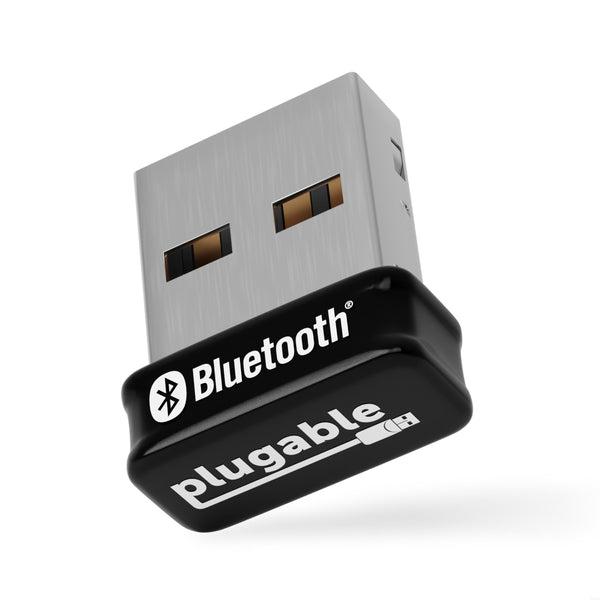
Plug in the USB adapter
Finding the right port is the first step in installing a Bluetooth adapter for PC. Most adapters are designed for USB 3.0 ports, which are typically blue inside the connector. These ports provide the stable power delivery needed for consistent signal transmission. If you only have USB 2.0 ports (usually black), the adapter will still work, but you may experience slightly slower data rates or less range stability.
Look at the back of your desktop tower or the sides of your laptop. Identify a port with a blue interior. This indicates USB 3.0 compatibility. Avoid using hubs or extension cables for the initial setup, as they can interfere with the Bluetooth signal strength.
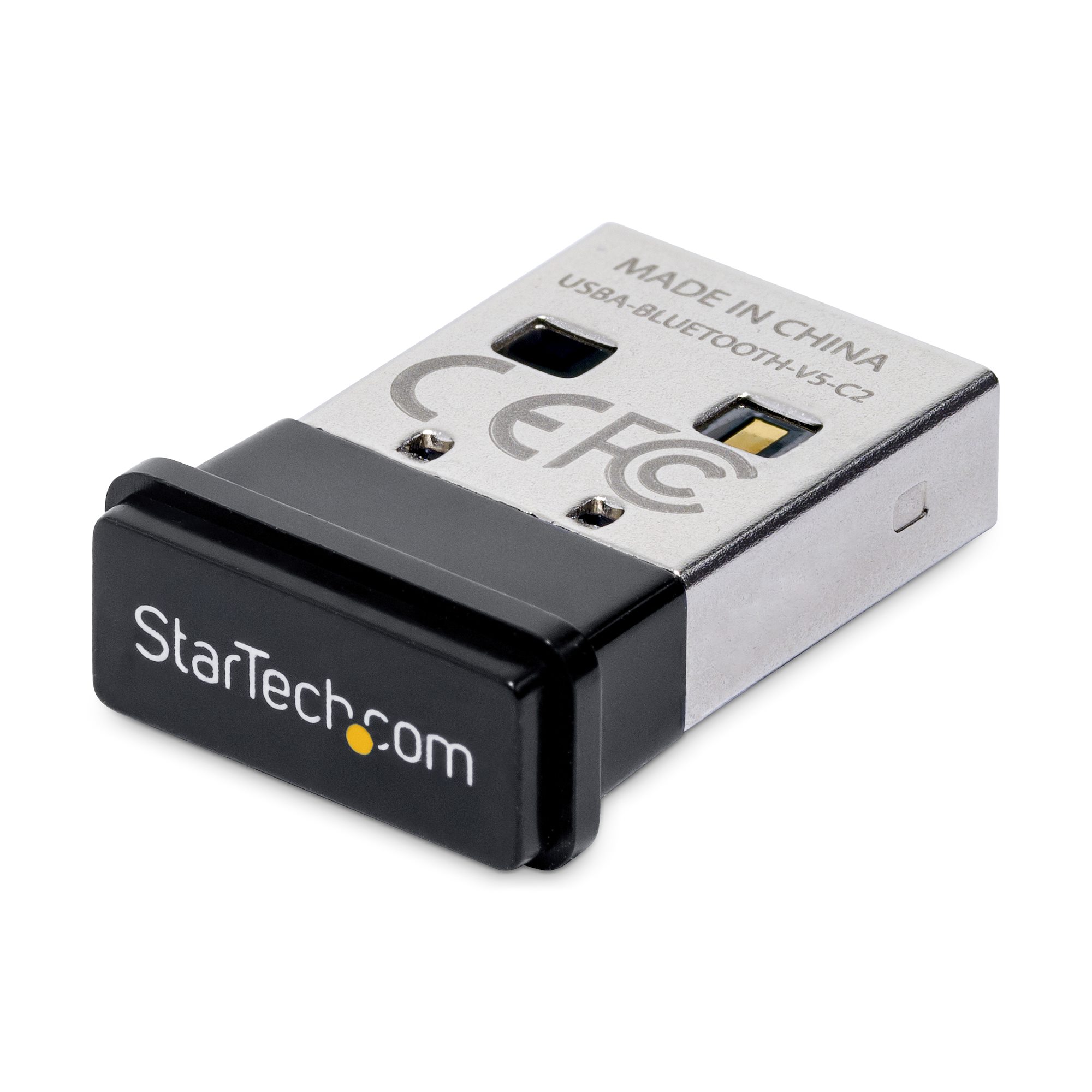
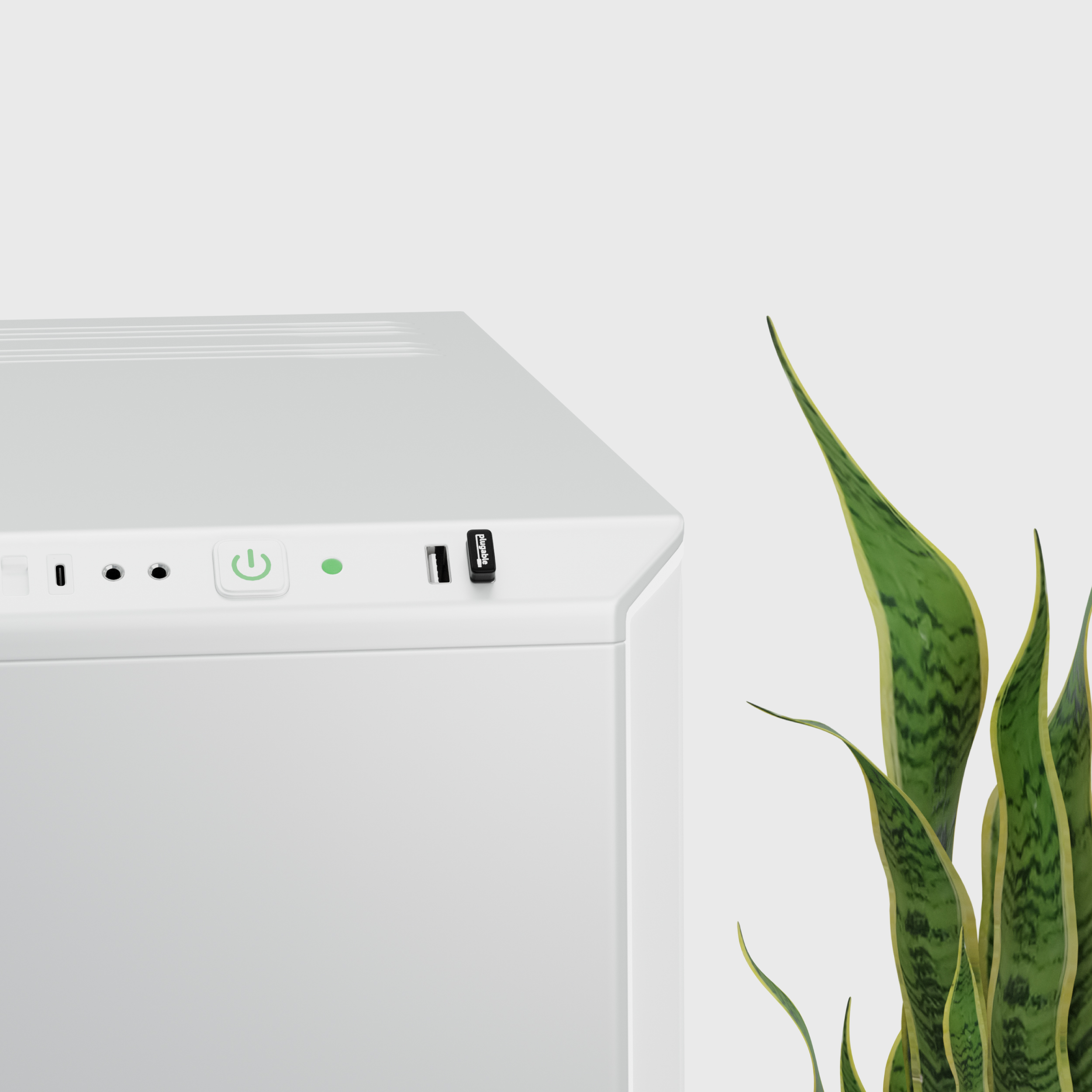
Hold the adapter by its plastic body, not the metal connector. Push it straight into the port until it sits flush. You should feel a slight resistance before the connection is secure. Do not force it; if it doesn't fit, you may be trying to use a USB-C port with a USB-A adapter without the correct dongle.
If your adapter comes with screw-on antennas, attach them now. Twist them clockwise until they are snug. Position the antennas vertically and away from metal surfaces or thick desk legs. This orientation helps the signal broadcast outward rather than being blocked by the computer's chassis.
Once the hardware is secure, give the system a moment to recognize the new device. Windows 11 will typically display a notification in the bottom-right corner indicating that the driver is being installed. If the adapter does not appear in your settings within a minute, try moving it to another USB port to rule out a faulty port on the motherboard.
Install drivers and check status
Once the Bluetooth adapter is plugged into an available USB port, Windows usually detects it within seconds. Modern versions of Windows 10 and 11 include built-in drivers for most standard Bluetooth dongles, meaning you often don't need to install anything manually. The system will install the necessary software in the background and notify you when the device is ready.
However, if the adapter doesn't appear or fails to connect, you may need to install the manufacturer's specific drivers. Some older or specialized adapters require a separate driver package provided by the brand. You can find these on the manufacturer's website using the model number printed on the device or its packaging. Run the installer and restart your computer if prompted.
To verify the installation, open the Start menu, type "Device Manager," and press Enter. Look for the "Bluetooth" section in the list. If the adapter is installed correctly, it will appear there, often alongside your PC's built-in wireless network adapter. If you see a yellow exclamation mark next to the device, the driver is corrupted or missing, and you should reinstall it.
Right-click the Start button and select "Device Manager" from the menu. Alternatively, press Windows Key + X and choose Device Manager.
Scroll down the list of hardware categories until you find "Bluetooth." Click the arrow next to it to expand the list and see your connected devices.
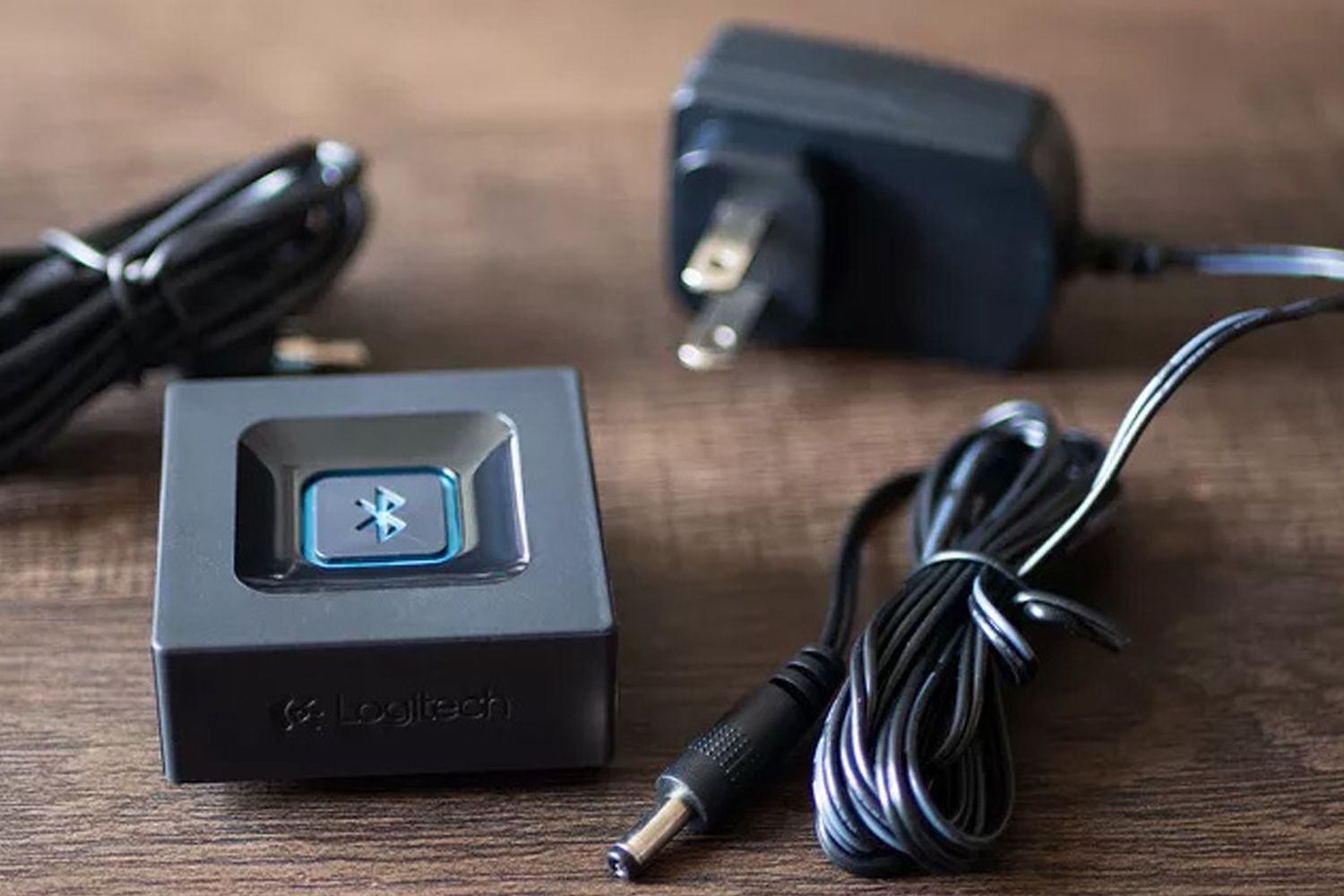
Check that your new Bluetooth adapter is listed without any warning icons. If it is present and active, your adapter is ready to pair with headphones, speakers, or other peripherals.
If the device still isn't recognized, try another USB port, preferably one directly on the motherboard rather than a front-panel case port, to ensure stable power delivery. You can also check the "Universal Serial Bus controllers" section in Device Manager to see if the USB port itself is functioning correctly.
Fix common connection drops
If your Bluetooth Adapter for PC keeps disconnecting or stuttering, the issue is usually interference or driver conflict, not a broken device. These problems are the most frequent pain points for new users and are often solved with a few targeted adjustments.
Check for USB 3.0 interference
USB 3.0 ports emit radio frequency noise that can drown out the 2.4 GHz signal used by Bluetooth. If your adapter is plugged directly into a USB 3.0 port, try moving it to a USB 2.0 port or using a short extension cable to keep it away from the computer’s main body. This simple change often resolves latency and dropouts immediately.
Update or reinstall drivers
Outdated drivers are a common cause of pairing failures. Open Device Manager, locate your Bluetooth adapter under "Bluetooth" or "Universal Serial Bus controllers," and check for updates. If the adapter is already up to date, right-click it and select "Uninstall device." Restart your PC; Windows will automatically reinstall the default driver, which often clears up persistent connection bugs.
Re-pair the device
Sometimes the initial pairing handshake gets corrupted. Go to your Bluetooth settings, remove the problematic device from the list, and then put the device back into pairing mode. Search for it again and reconnect. This forces a fresh connection protocol that can resolve weak signal issues.
Open Device Manager, find your Bluetooth adapter, right-click it, and select Uninstall device. Confirm the prompt to remove the current driver software.
Restart your PC to clear any cached connection states. Windows will detect the hardware again upon boot.
After reboot, Windows installs the default driver. Go to Settings > Bluetooth, remove the old device entry, and pair your device again.
Best Bluetooth adapters for PC
Choosing the right Bluetooth adapter for PC depends on what you plan to connect. The market offers distinct options for casual use, gaming, and specialized long-range needs. Below are three reliable choices that cover the most common scenarios.
Budget-friendly daily drivers
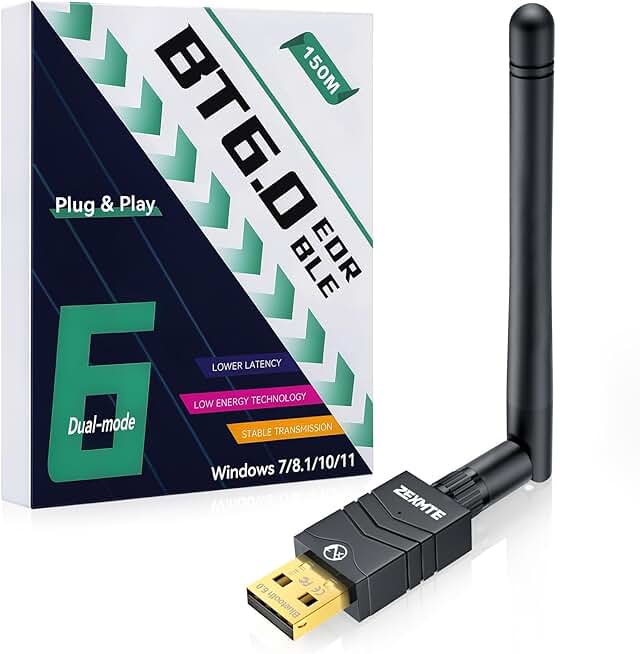
For basic tasks like connecting a mouse, keyboard, or headphones, a standard Bluetooth 5.0 or 6.0 adapter is sufficient. The ZEXMTE Bluetooth 6.0 Adapter is a popular choice that supports dual modes (BR/EDR and BLE) to handle both audio and data devices simultaneously. It offers a low-latency connection and backward compatibility, making it a solid entry-level option for everyday computing.
Gaming and low-latency needs
Gamers and audio enthusiasts should prioritize adapters with low-latency technology to minimize audio delay. The Plugable USB Bluetooth 5.0 Adapter is designed for stability and speed, supporting up to seven connected devices. Its backward compatibility with older Windows versions makes it a versatile pick for users who need a reliable, high-performance connection without breaking the bank.
Long-range desktop solutions
If your PC sits far from your desk or you have thick walls, a long-range adapter can improve signal strength. The Long Range USB Bluetooth 5.3 Adapter features enhanced antennas to extend connectivity distance. This is ideal for desktop users who want to connect wireless controllers or audio devices from across the room without frequent dropouts.


As an Amazon Associate, we may earn from qualifying purchases.
Quick installation checklist
Before you begin, verify you have a compatible Bluetooth adapter for PC and administrative access to your Windows settings. This ensures the driver installation proceeds without permission errors.
Insert the USB Bluetooth adapter into an available USB port on your computer. Most modern adapters are plug-and-play, meaning Windows will automatically detect the hardware and begin installing the necessary drivers in the background.
Check the notification area for a confirmation that the device is ready. If the adapter is not recognized, open Device Manager to check for driver conflicts or missing software. You may need to manually install drivers from the manufacturer’s website if automatic detection fails.
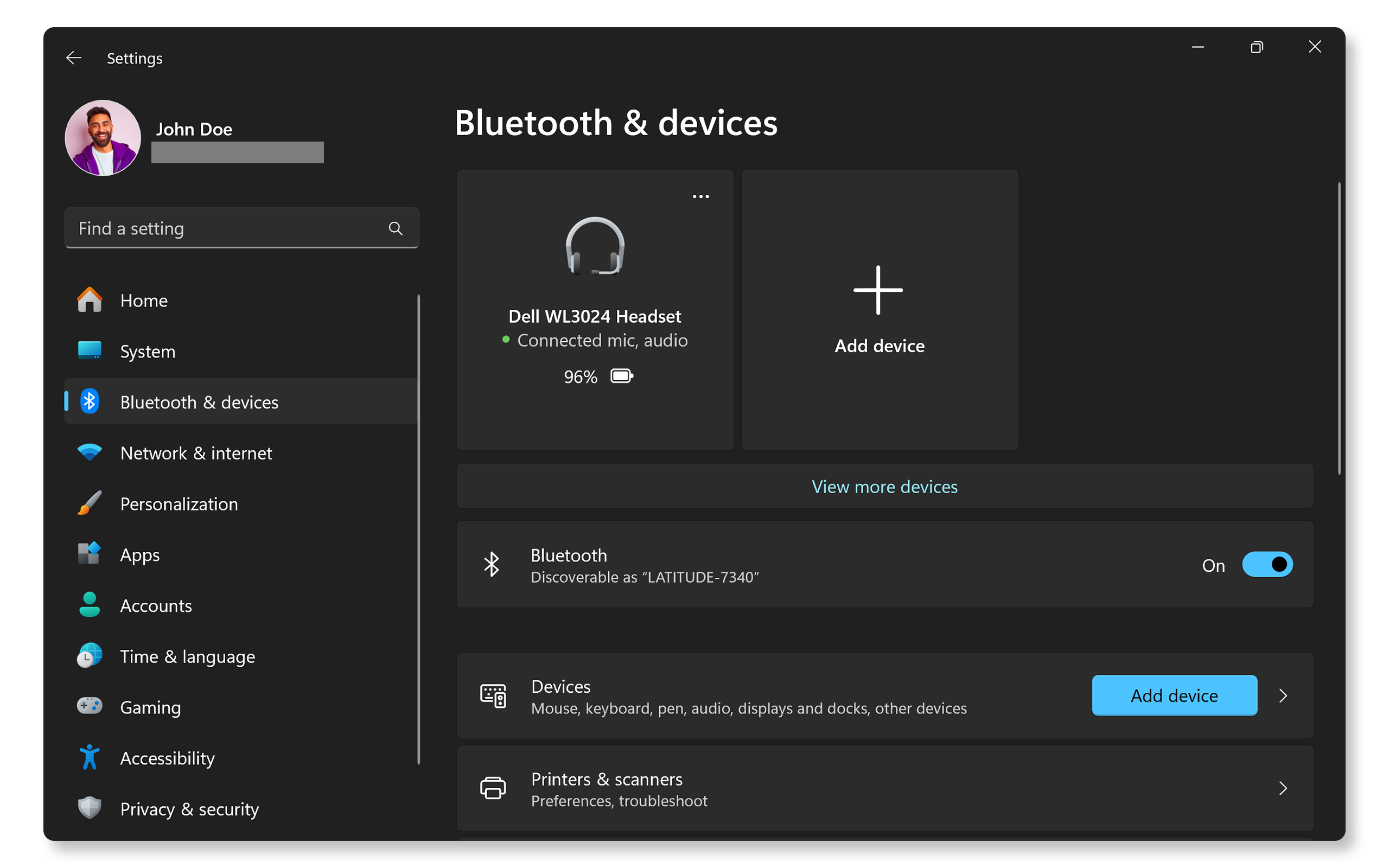
Navigate to Settings > Bluetooth & devices and pair your headphones, keyboard, or mouse. Ensure your peripheral is in pairing mode. Once connected, test the audio or input to confirm the Bluetooth adapter for PC is functioning correctly.
After pairing, run a quick functionality test. Play audio through your Bluetooth headphones or connect a wireless mouse to verify stability. If you experience latency or dropouts, move the adapter to another USB port, preferably one on the back of a desktop tower to avoid interference from internal components.
No comments yet. Be the first to share your thoughts!